How to Build Your Lead Scorer Agent
Building the agent isn't a development project — it's four decisions. Here's exactly how it works.
Pick the platform you already use, add your open pipeline, and connect our MCP. After that, the agent scores the book — conversion probabilities, money at risk, value of contact, funnel stage outlook, multi-touch Shapley attribution, and a daily CALL / NURTURE / VERIFY queue — not a 0–100 CRM score you have to interpret yourself.
Step 1: Find an Agent Builder
Pick the platform you already use, or the one your team is standardizing on. Common choices:
- Microsoft Copilot Studio
- AWS Bedrock
- Google Gemini Enterprise
- Salesforce Agentforce
- Cursor — the walkthrough below uses Cursor; Claude Desktop works the same way
- More platforms being added as they gain adoption
You're not locked in — the same underlying intelligence connects to whichever builder your organization runs on.
Step 2: Add a Data Source
Every agent builder needs to know where your open pipeline lives. There are two ways to connect it:
CSV / Excel
Export the lead file your CRM already produces — Salesforce, HubSpot, or any CRM. Every row needs lead_id and created_date. Add stage, status, closed_date, deal_size, and source when you have them. Optional touches and stage_history improve engagement, uplift learning, the Markov funnel, and Shapley attribution — they are not required to start. Fastest way to get started, no setup required.
MCP
Connect through a standard protocol built for secure, structured access. The agent queries live calculated intelligence instead of a file that went stale the moment you exported it.
What Is MCP, and How Does It Work?
MCP (Model Context Protocol) is an open standard that lets an AI agent connect directly to a live source — instead of you exporting a file and hoping it's still accurate by the time someone reads it.
In plain terms:
- Your agent builder (Copilot Studio, Bedrock, Gemini Enterprise, Agentforce, Cursor, etc.) acts as the client.
- Our MCP acts as the server — it exposes lead pipeline intelligence (conversion probabilities, money at risk / value of contact, funnel stage outlook, multi-touch Shapley attribution, and a daily CALL / NURTURE / VERIFY queue) in a structured, secure format the agent can query directly.
- When your agent needs an answer — "who should I call today, and what's at risk if I don't?" — it asks the MCP server directly, instead of working off a static file someone uploaded weeks ago.
- Because it's a standard protocol, not a custom integration, it works the same way across every agent builder — connect once per platform, and every query after that pulls current, calculated numbers.
The result: your agent isn't reading a snapshot. It's asking a live, governed source of truth every time — which is what keeps the pipeline score accurate and the access controlled. Do not invent scores — call the tool when lead data is available.
Step 3: Choose MCP Where Possible
CSV upload works, but MCP is the preferable path — it's the secure, standardized way for an agent to access live data, rather than a static file that goes stale the moment you export it.
Step 4: Connect Our MCP
This is the step that turns a generic agent builder into a Lead Scorer Agent. Connecting our MCP is what makes the data behind every answer deterministic — not a 0–100 guess, a calculated pipeline score you can trust twice.
Pick your platform below. Connecting our MCP is the same idea on each one — you add it once, then sign in with your Saifs AI account.
Steps to Enable MCP on AI Platforms
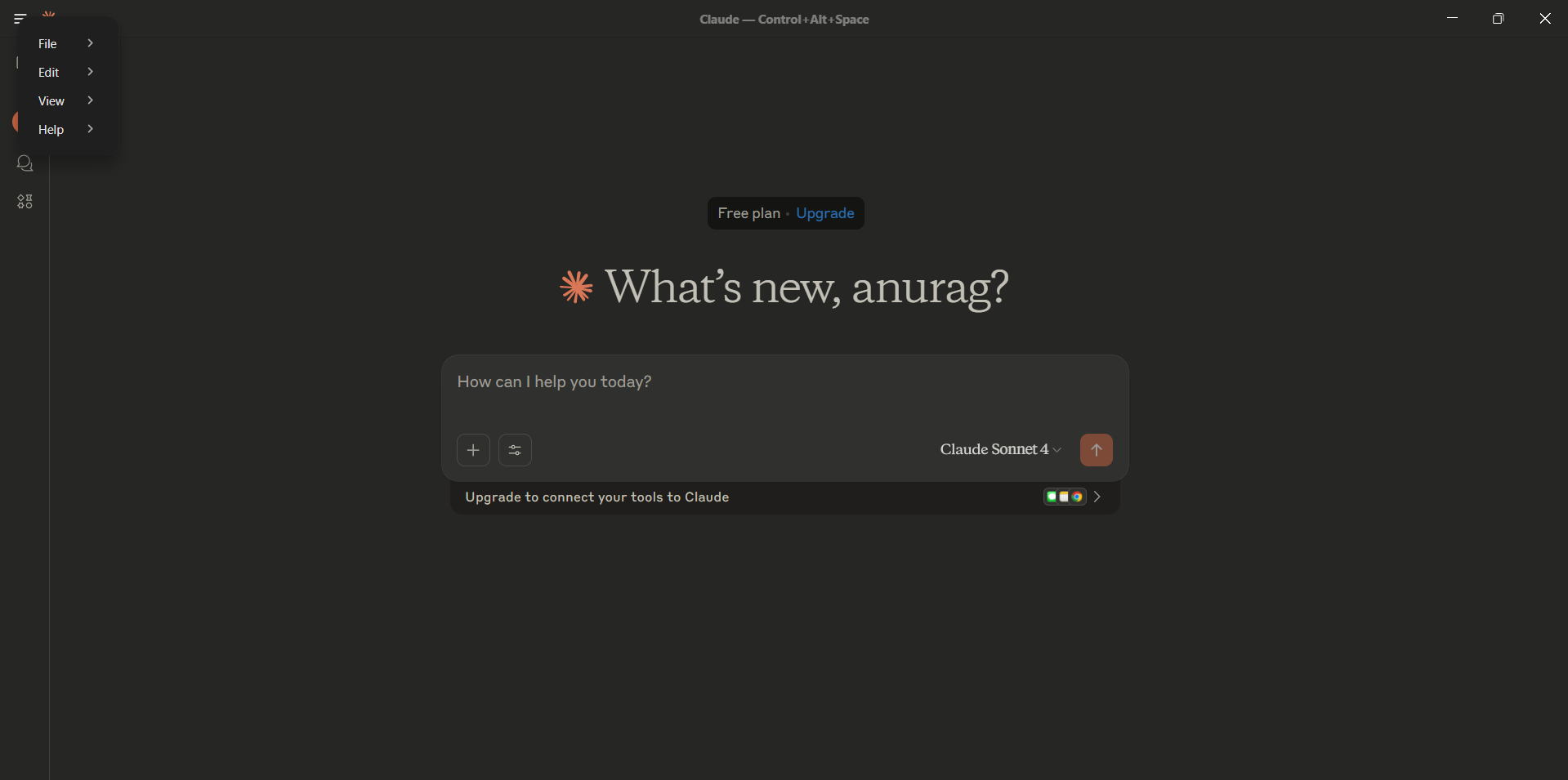
Open Claude and reveal the main menu
Launch Claude Desktop. In the top-left corner, click the three-dot menu to open the app's main menu.
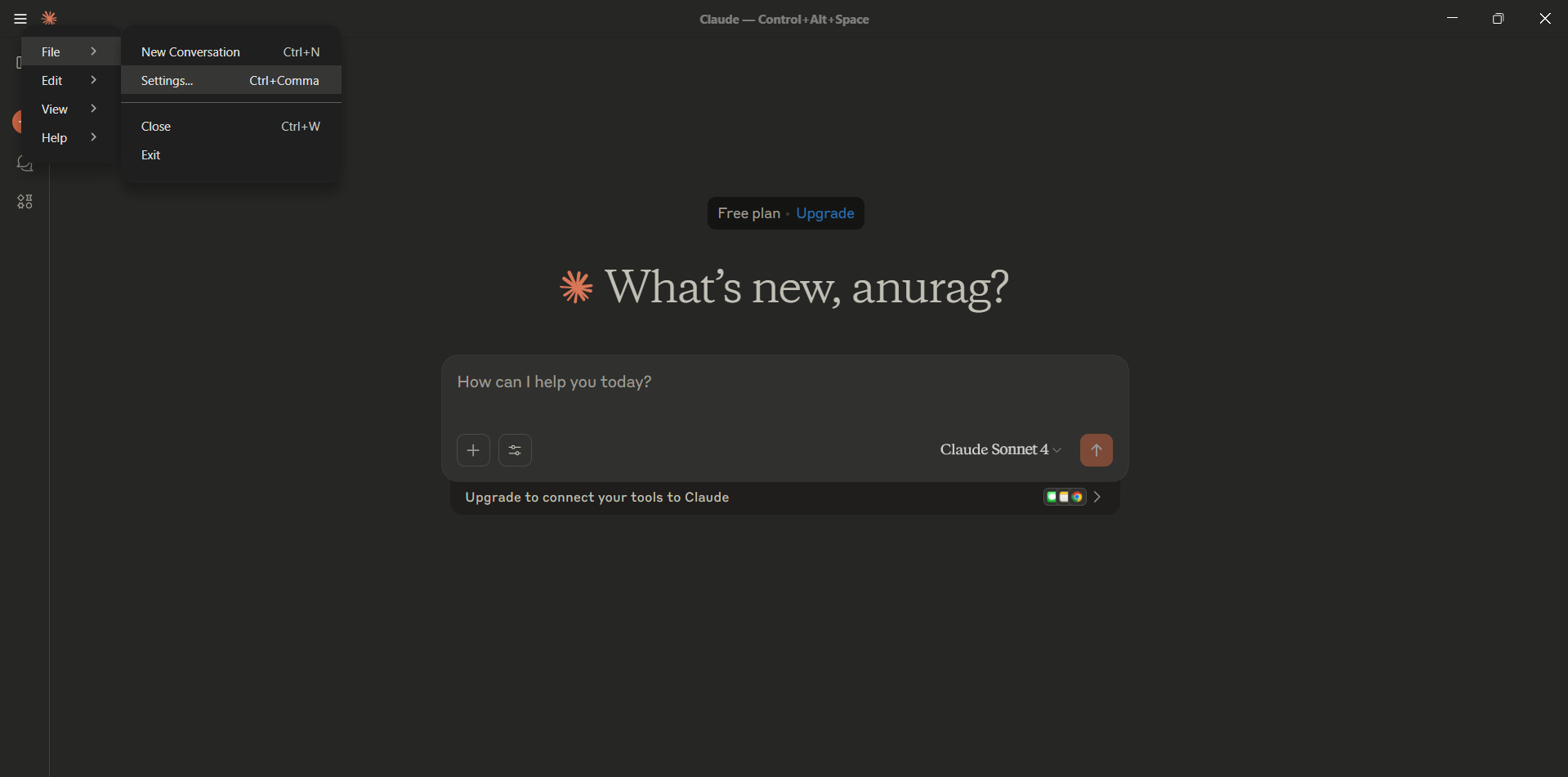
Go to Settings
From the three-dot menu, hover over File. Click Settings (or press Ctrl + Comma).
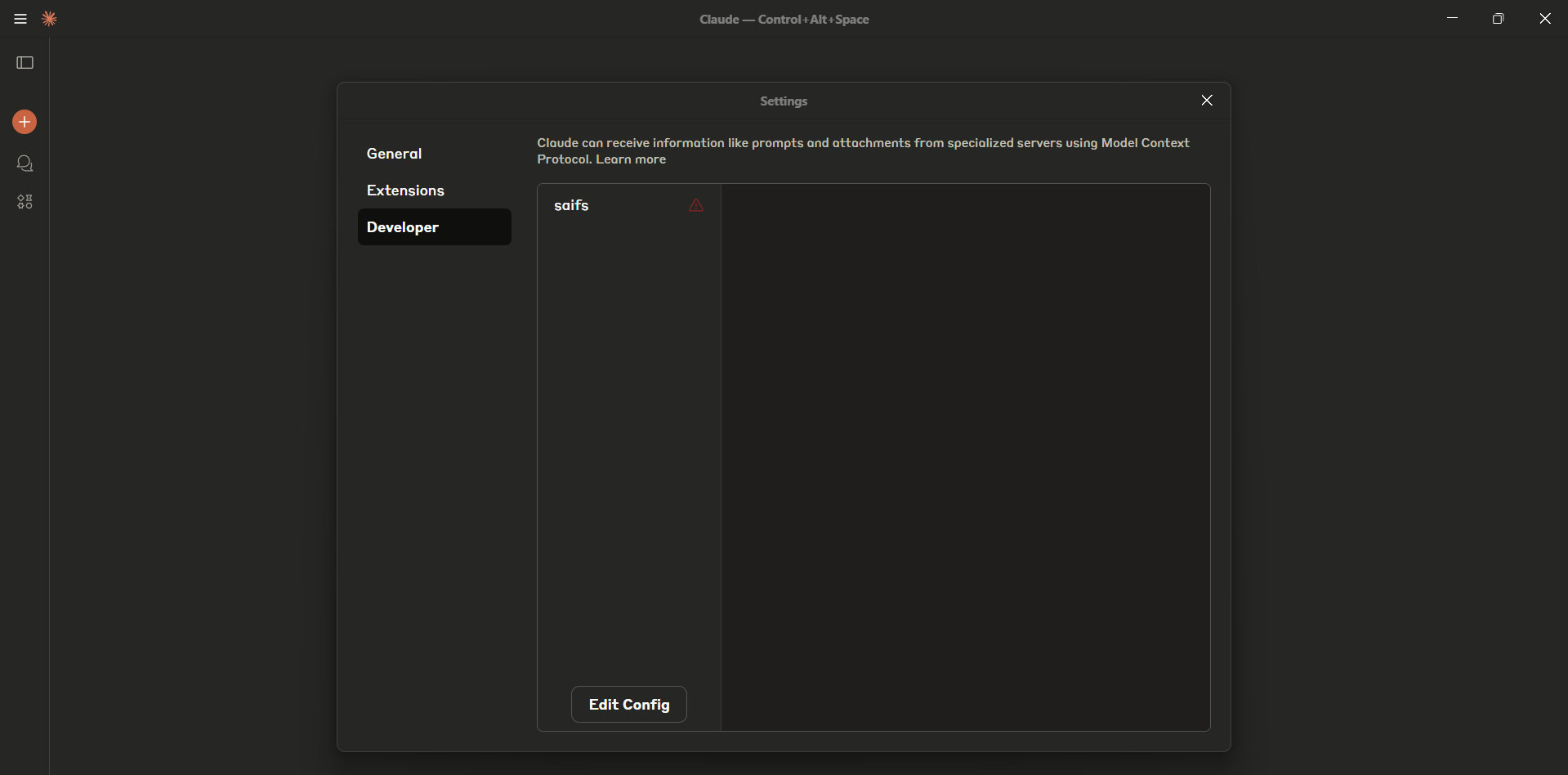
Open the Developer config editor
In Settings, select the Developer tab. Click Edit Config at the bottom of the panel.
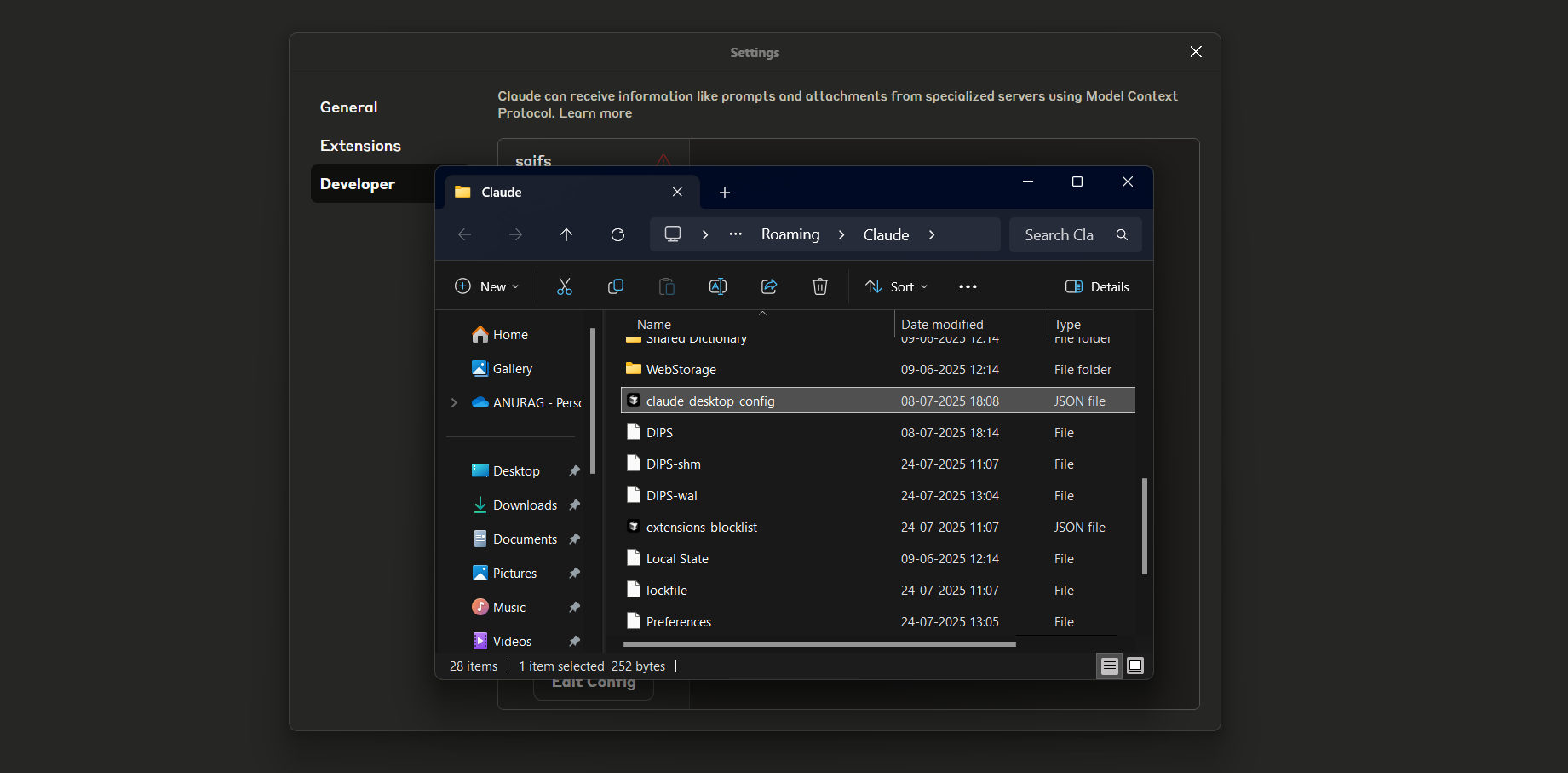
Locate the config file
A File Explorer window will open at the Claude config folder. Click to select claude_desktop_config.json.
Paste the Lead Scorer MCP
With the config file open, add this server — not the generic Saifs AI MCP. This one is Lead Scorer only. Then restart Claude.
{
  "mcpServers": {
    "lead-scorer": {
      "command": "npx",
      "args": [
        "-y",
        "mcp-remote",
        "https://lead-intelligence-mcp.saifs.ai/mcp"
      ]
    }
  }
}
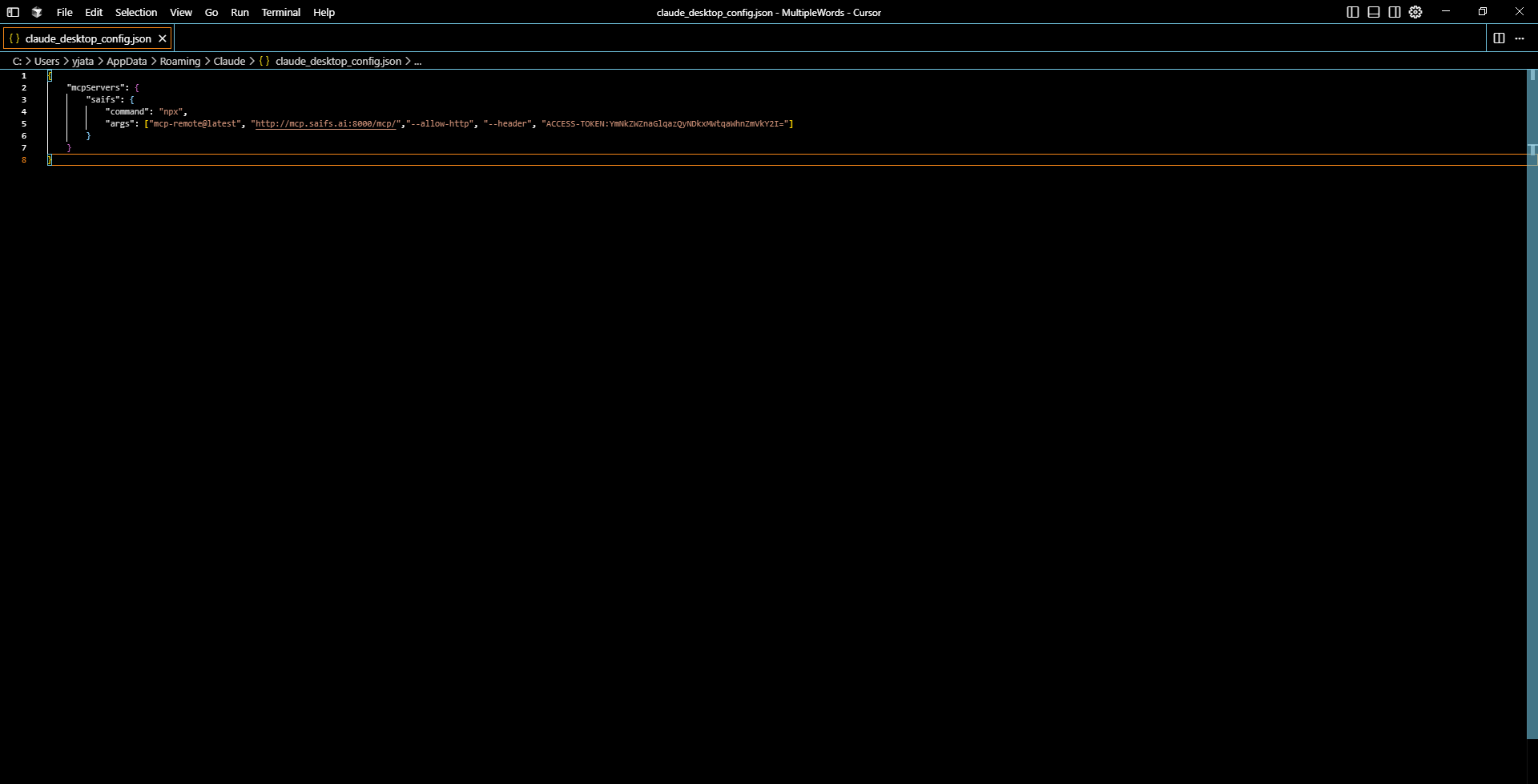
Launch Cursor
Open the Cursor application on your desktop. On the home screen, choose Open project, Clone repo, or Connect via SSH to begin working on a project.
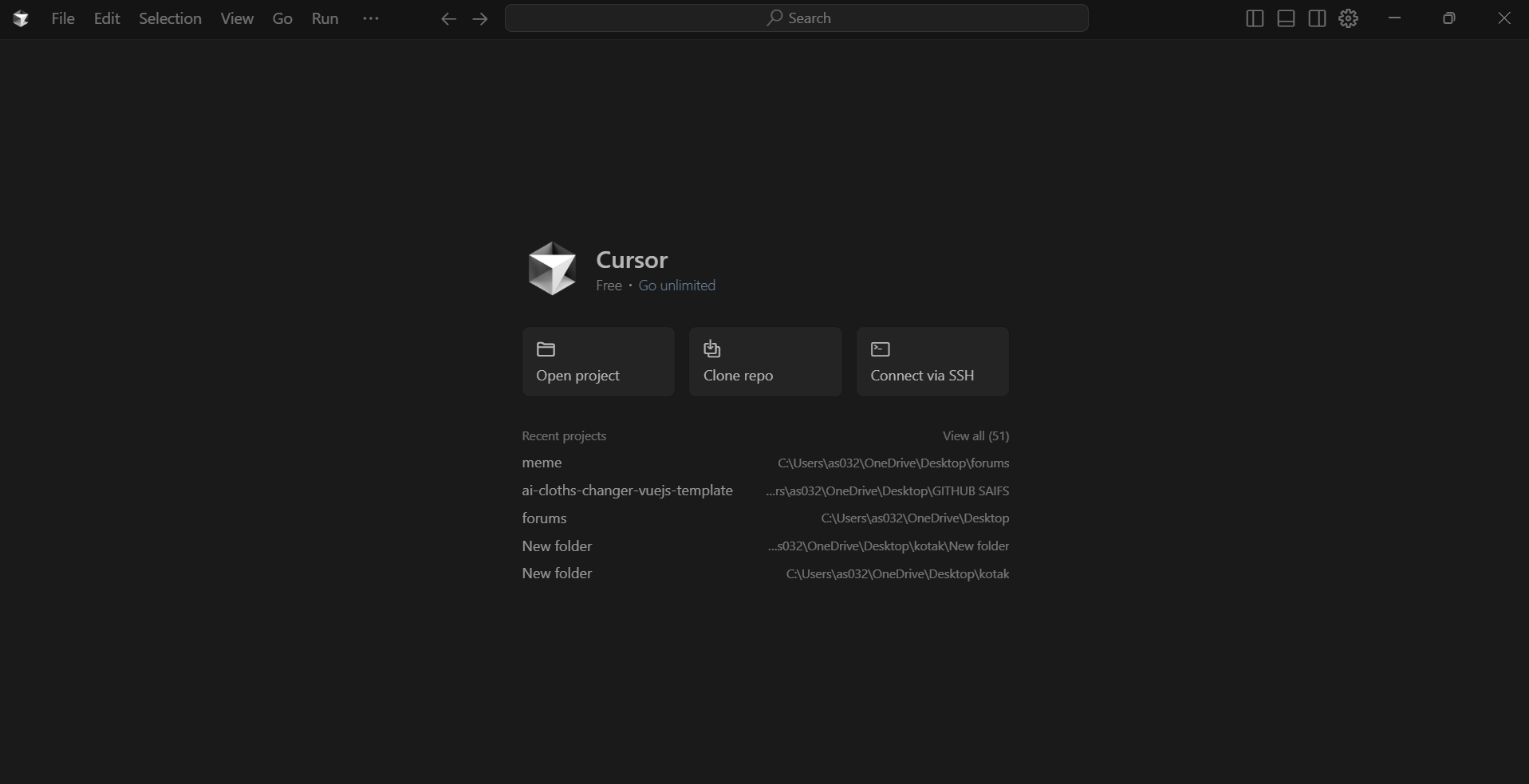
Settings → Tools & Integrations
Click the gear icon (top right) or go to File → Settings. In the left panel, click Tools & Integrations. Scroll to MCP Tools and click Add Custom MCP.
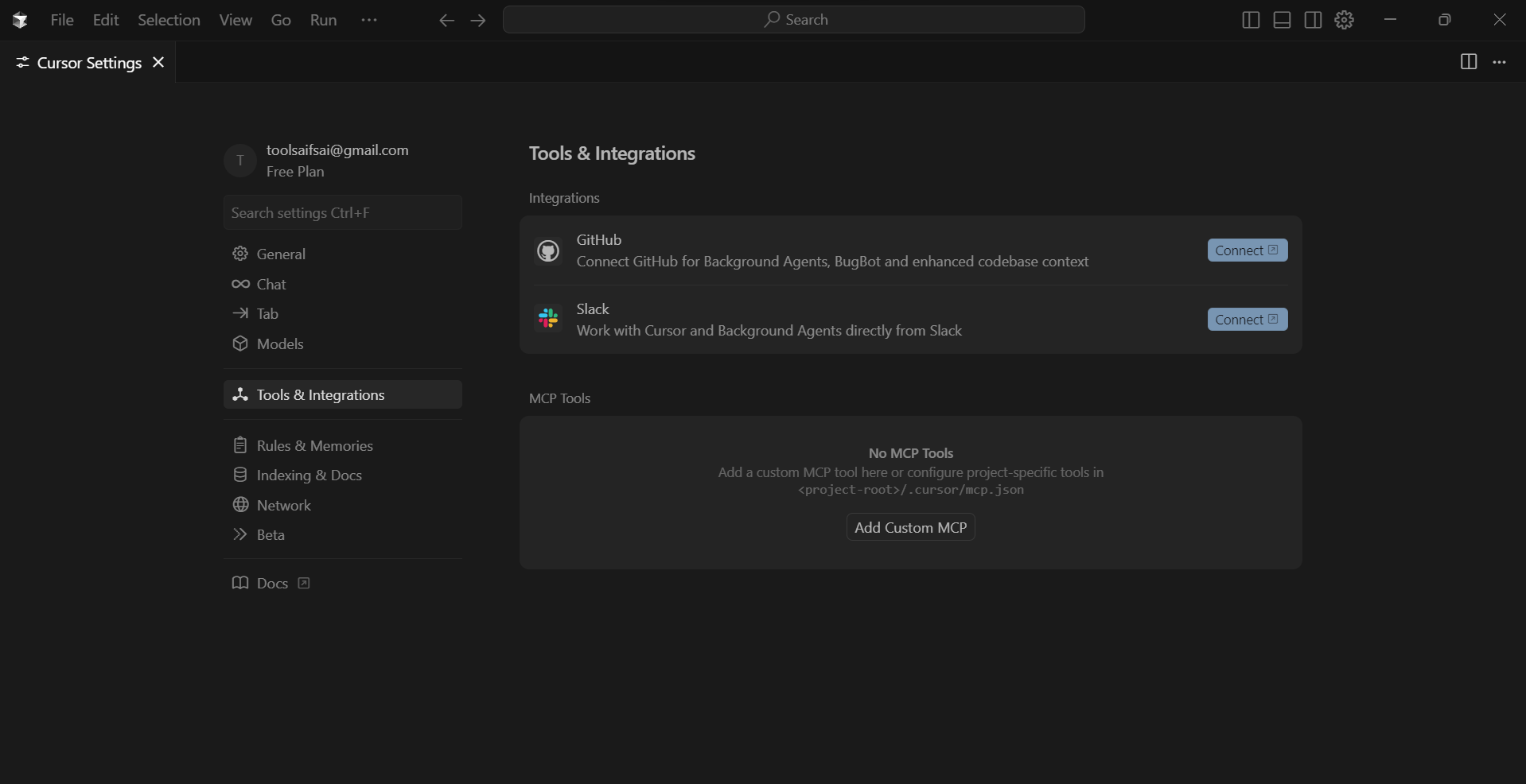
Add the Lead Scorer MCP
After clicking Add Custom MCP, Cursor opens the MCP config file. Add this server — not the generic Saifs AI MCP. This one is Lead Scorer only.
{
  "mcpServers": {
    "lead-scorer": {
      "url": "https://lead-intelligence-mcp.saifs.ai/mcp"
    }
  }
}
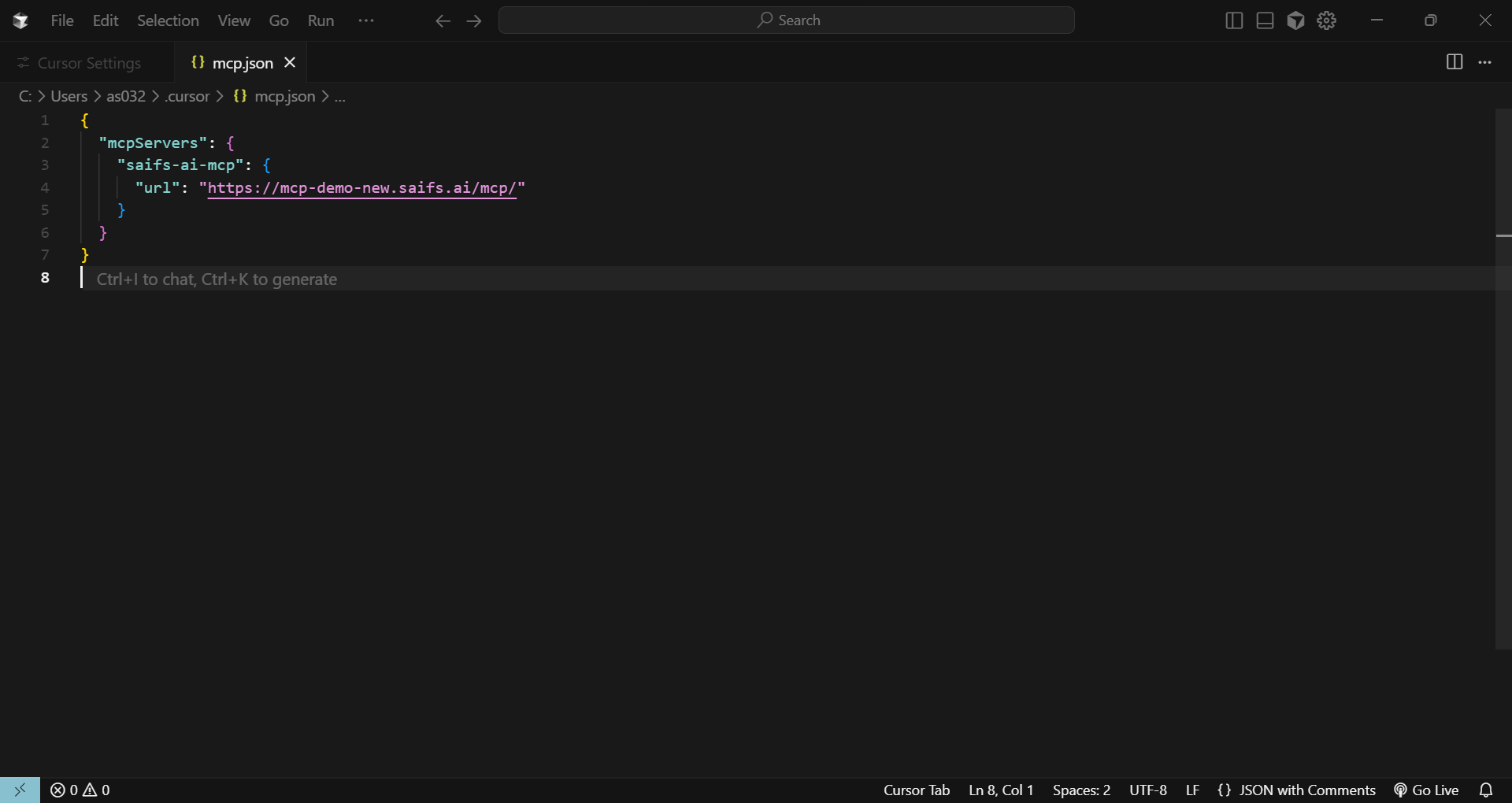
Click Connect
Click Connect next to the new MCP server under MCP Tools to start the integration.
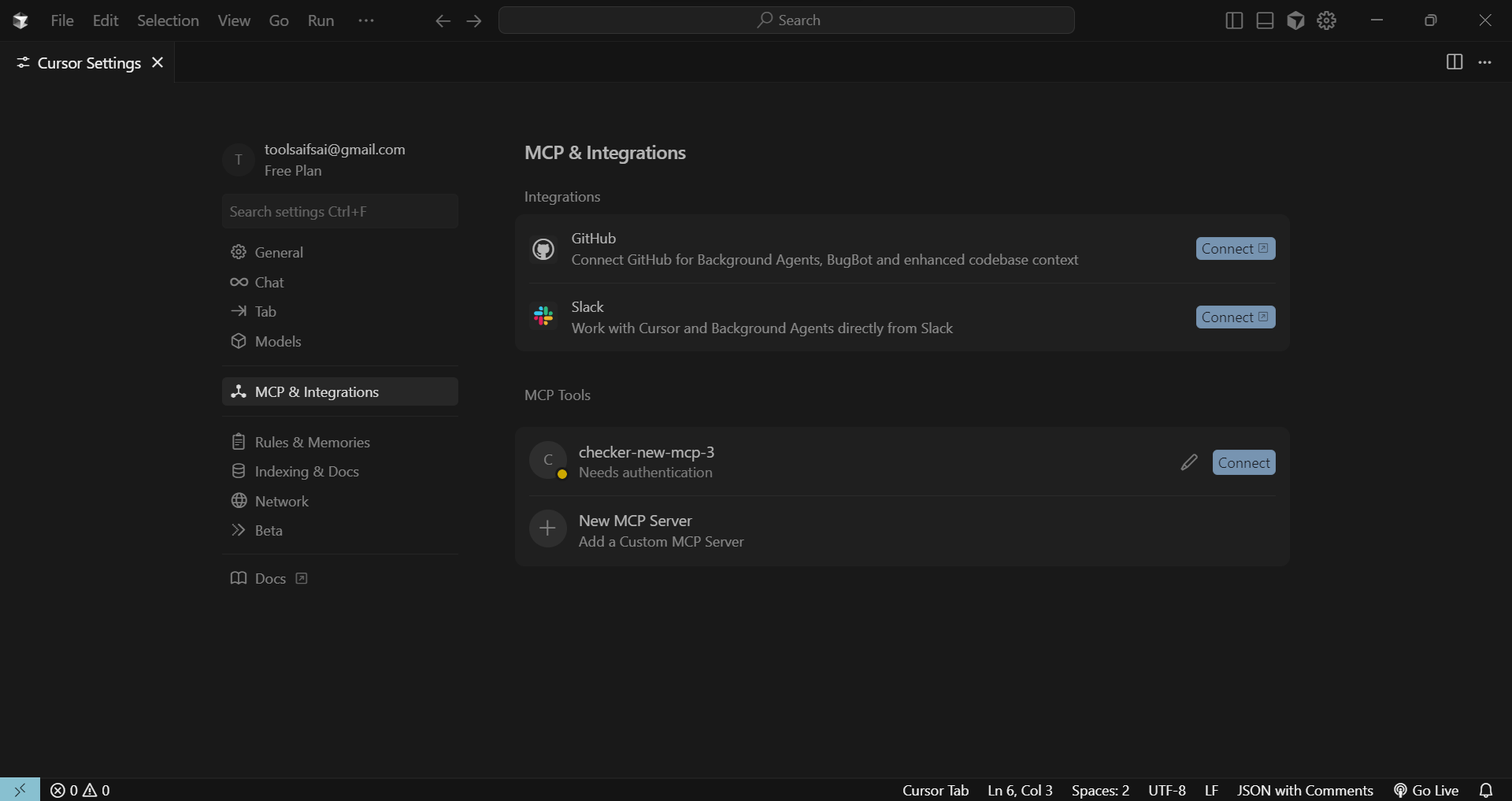
Allow extension access
When prompted, select Open so Cursor can process the URI and start the login flow.
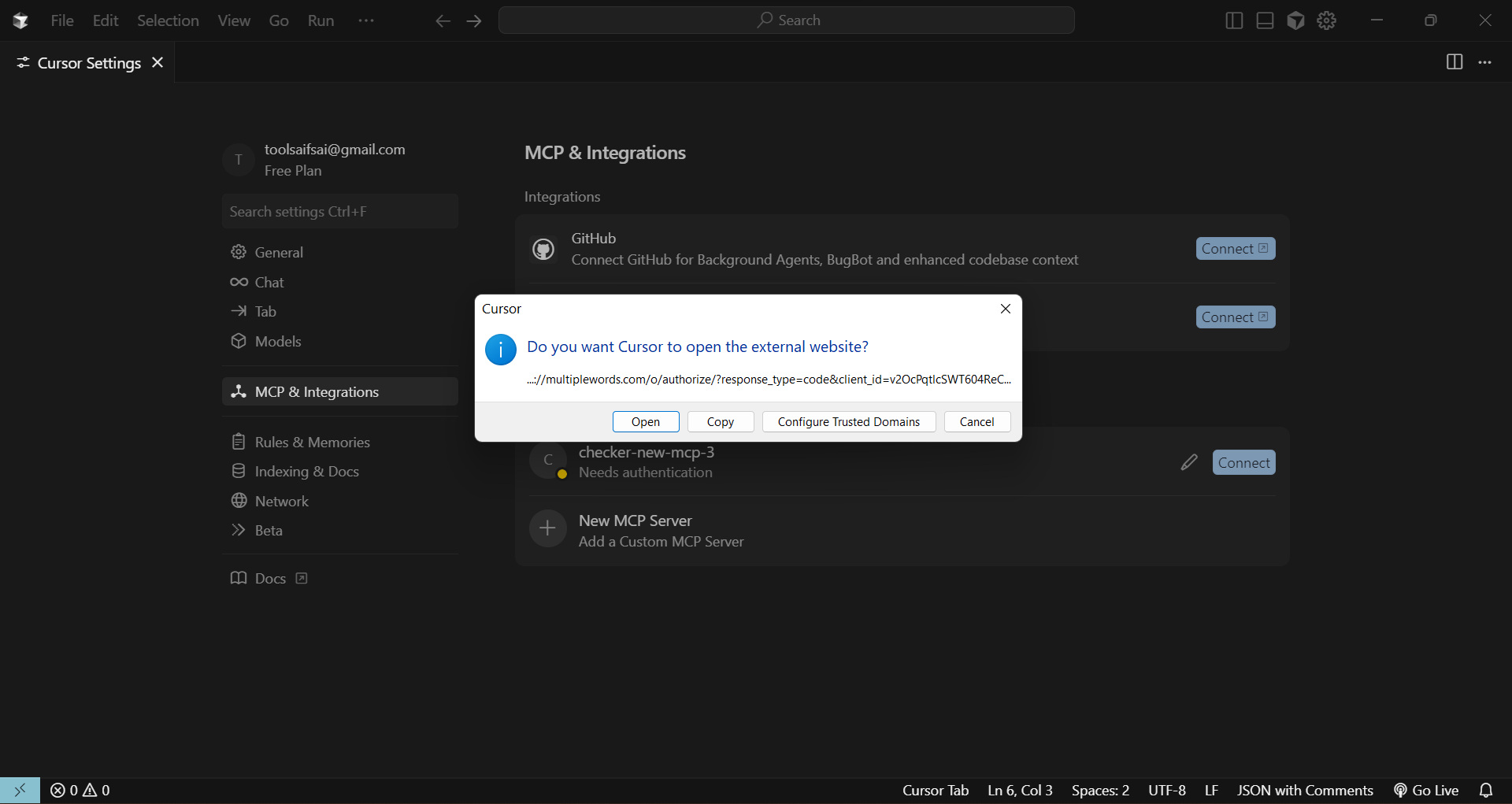
Choose a login method
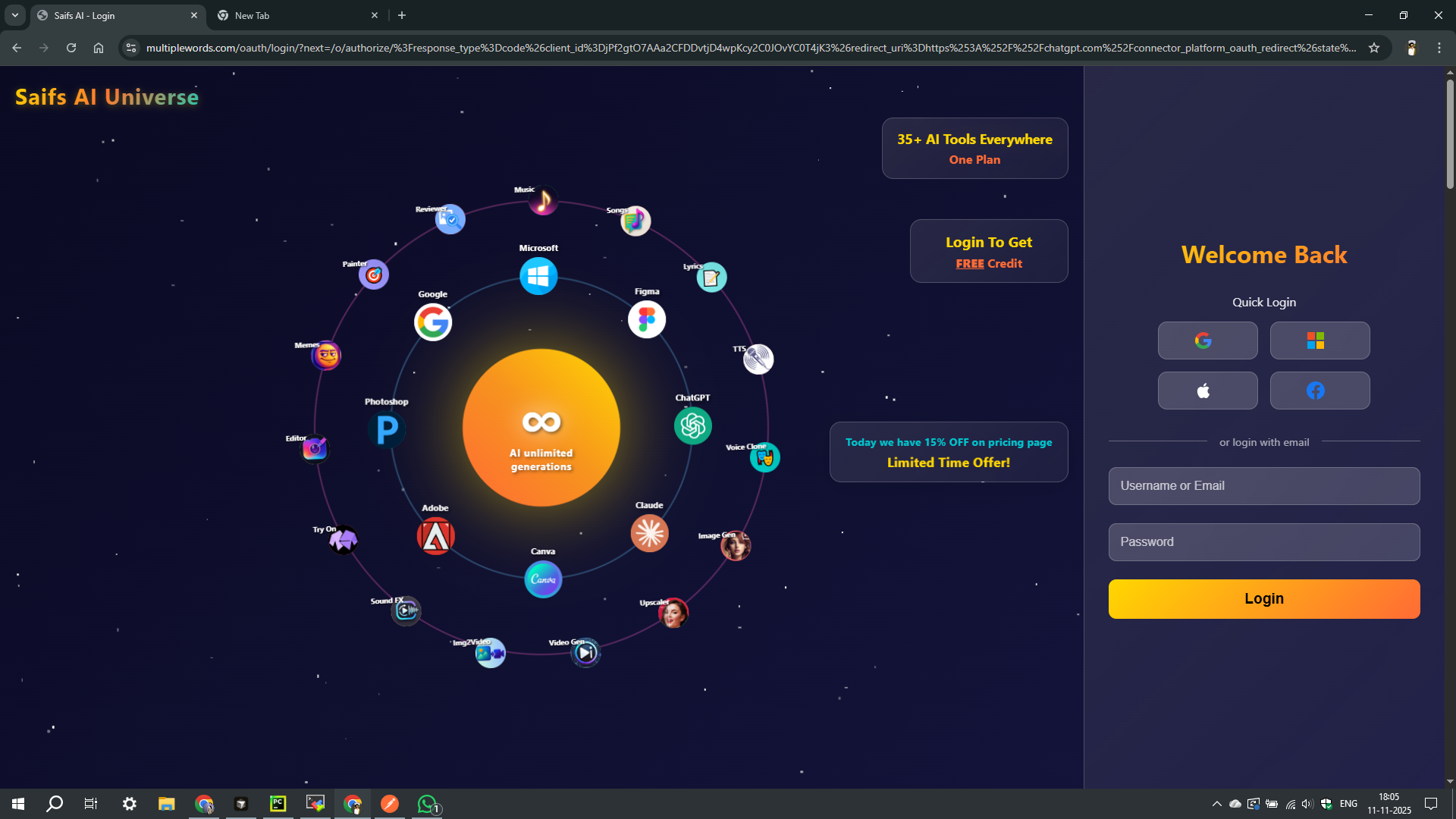
On the authentication page, sign in with Google, Microsoft, Apple, or Facebook — the same Saifs AI account you already use.
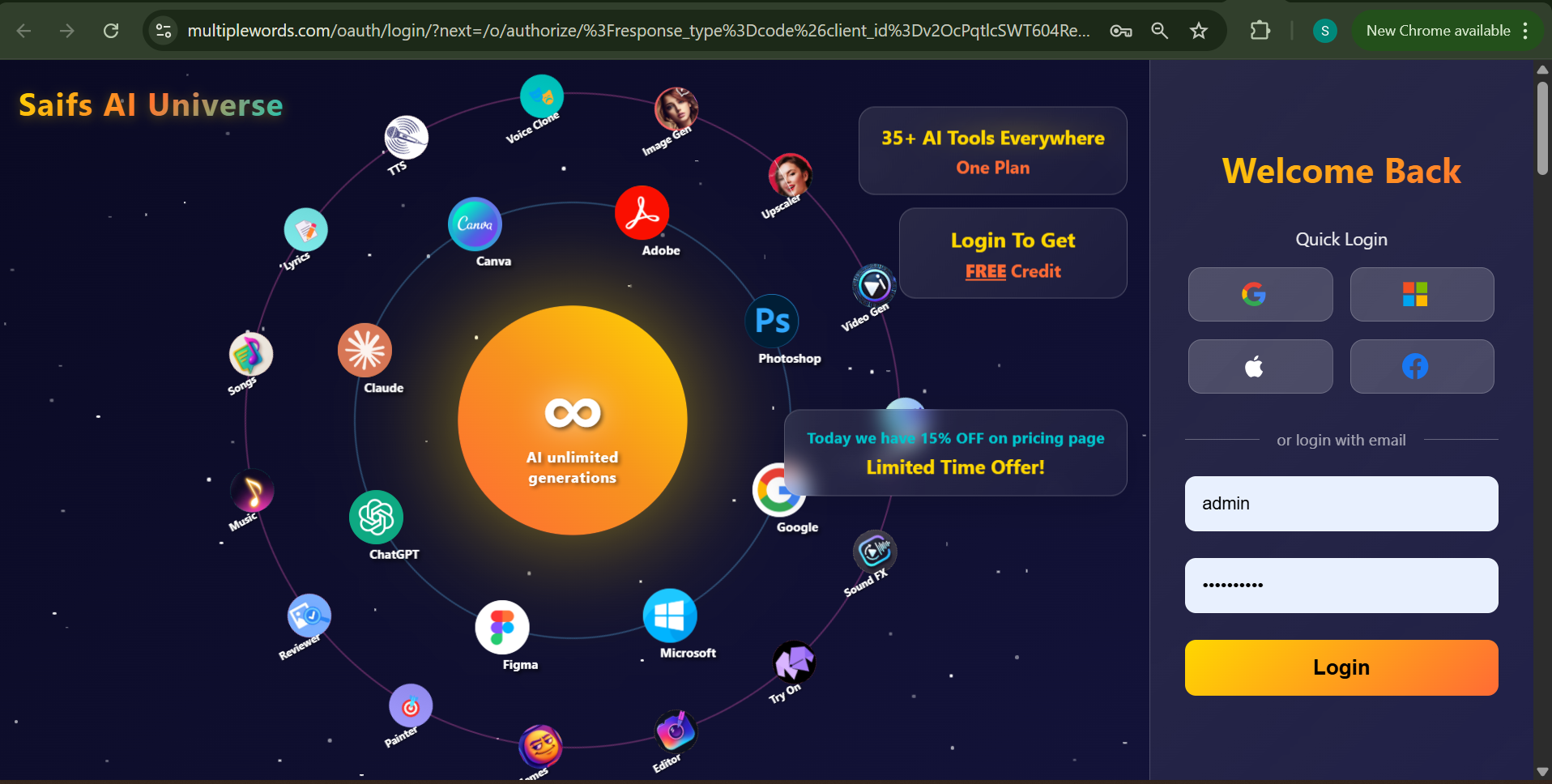
Complete authentication
After you sign in, a prompt will ask to finish the connection. Click Open to complete the MCP integration in Cursor.
Verify the agent is on
The toggle should be ON. That confirms the Lead Scorer Agent is connected.
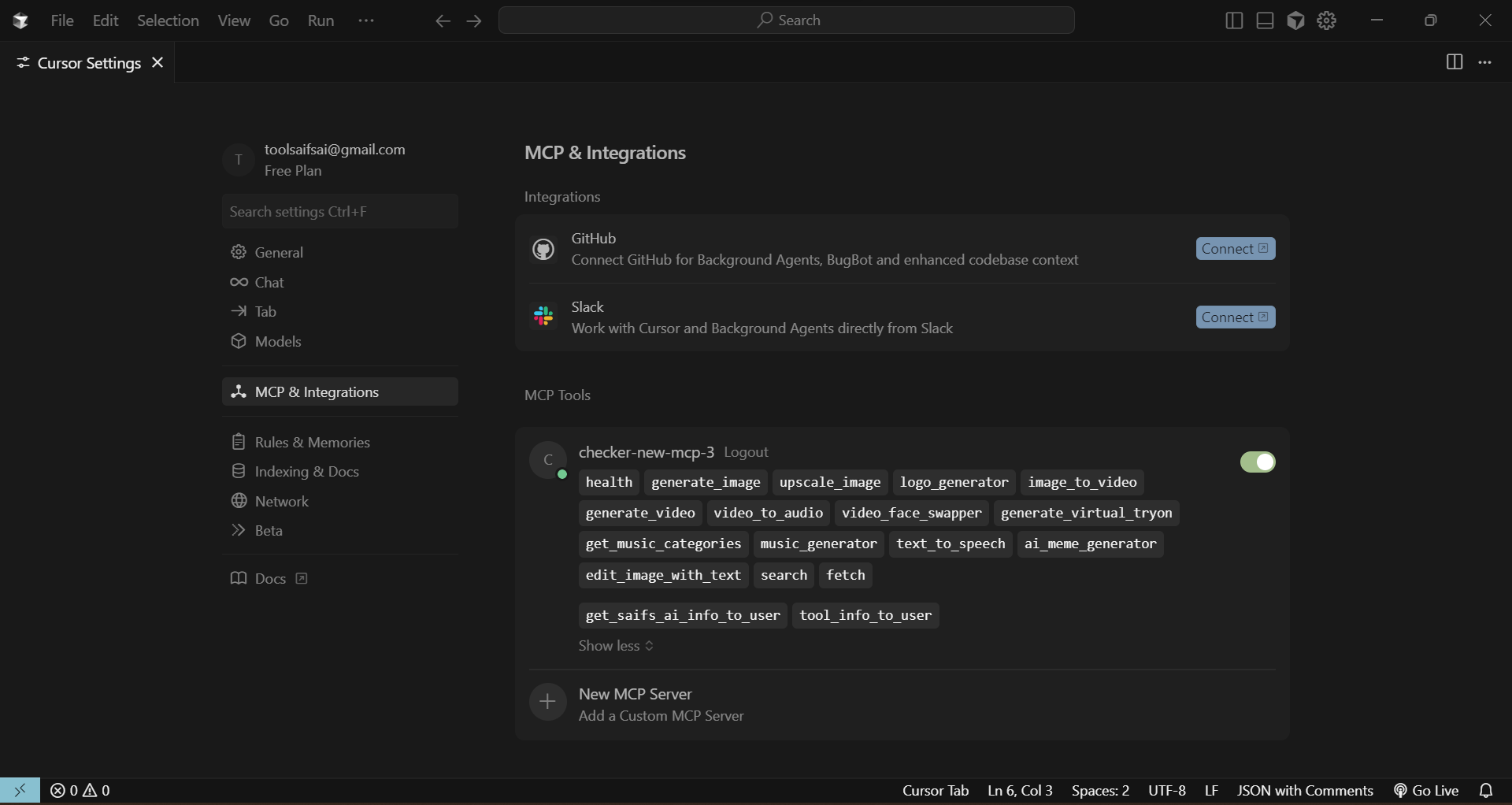
Open ChatGPT Settings
From the ChatGPT home page, go to Settings.
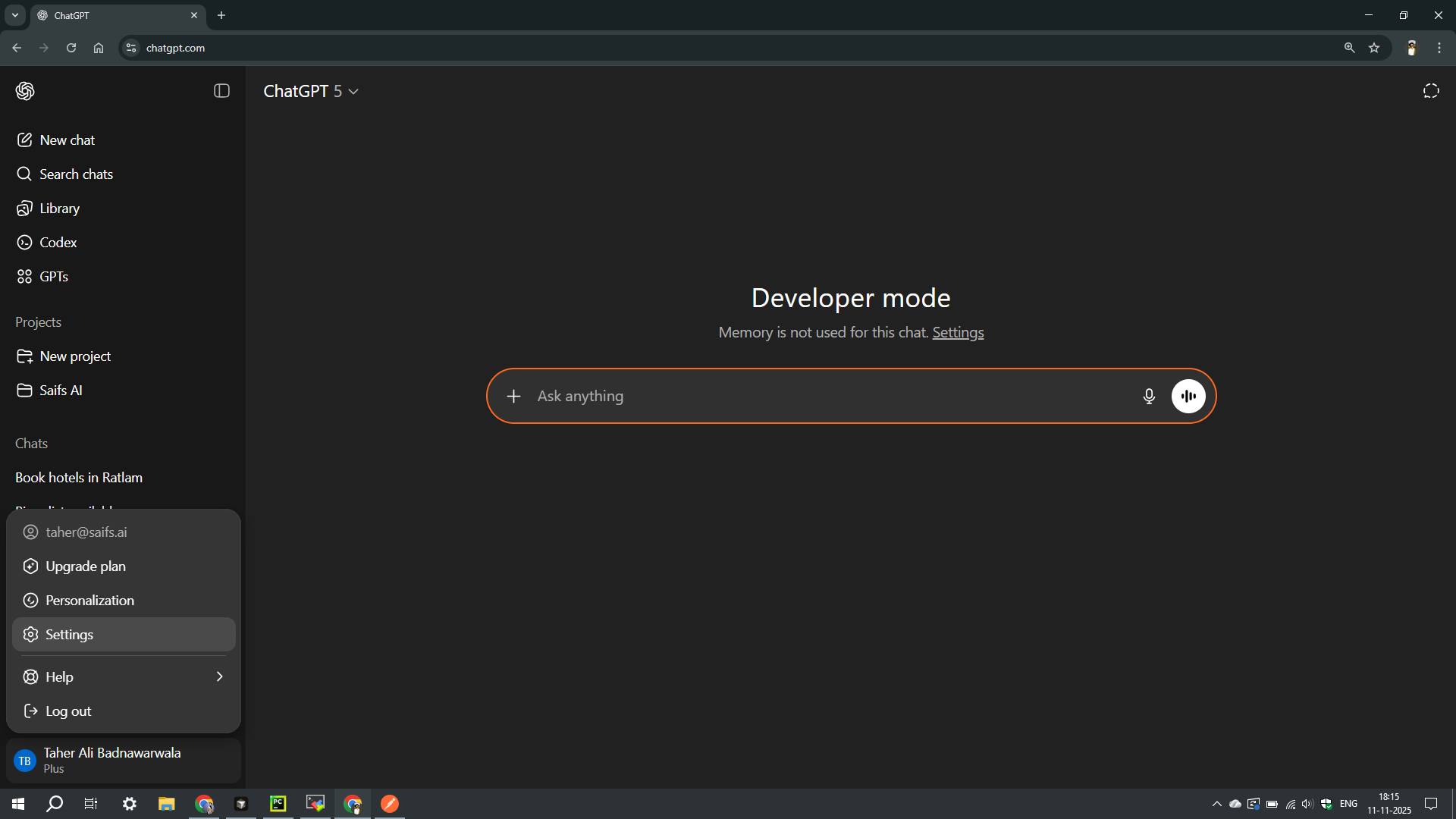
Open Connectors
Click Connectors in the settings menu.
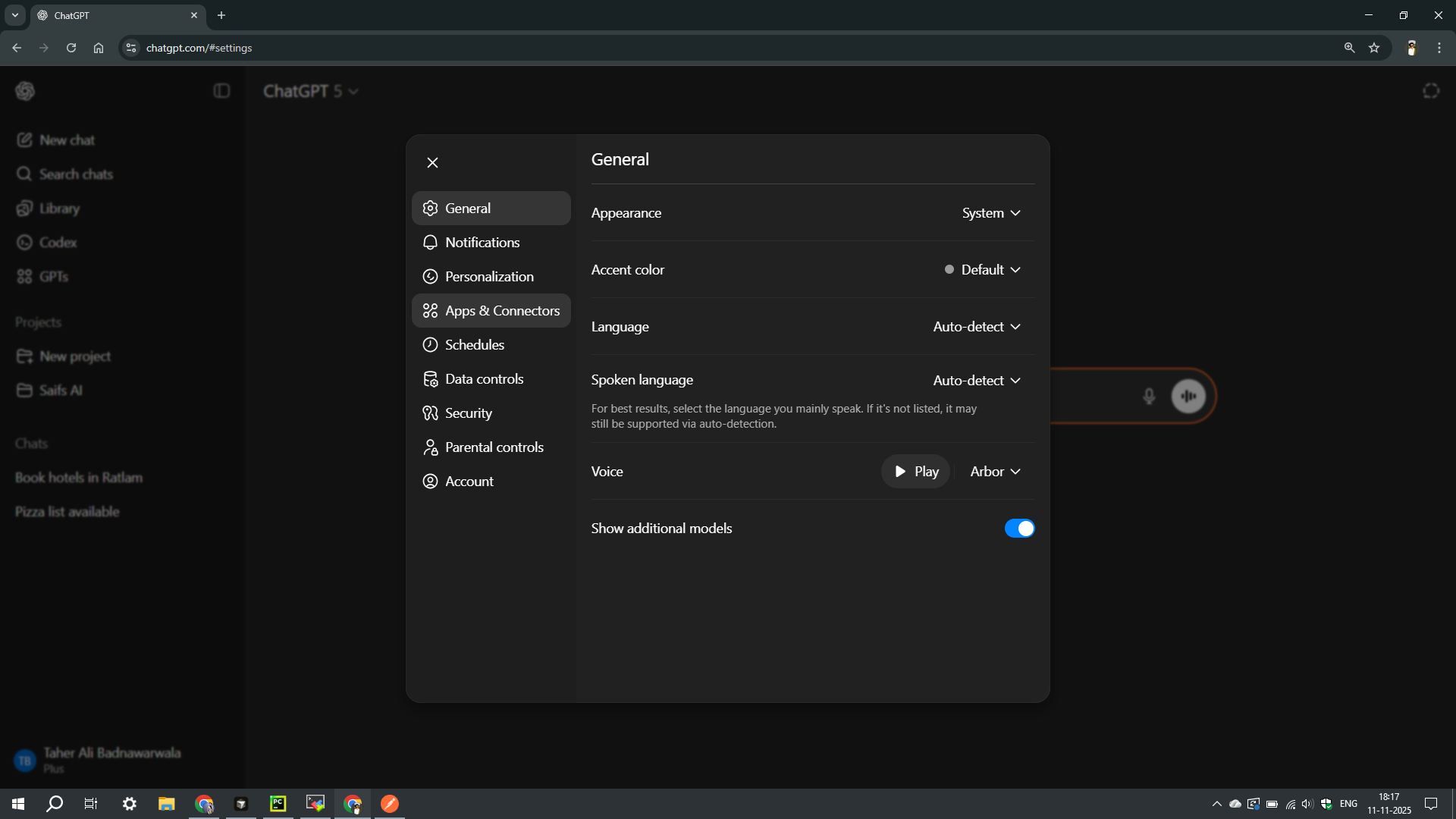
Create a connector
Click Create in the browse connectors section.
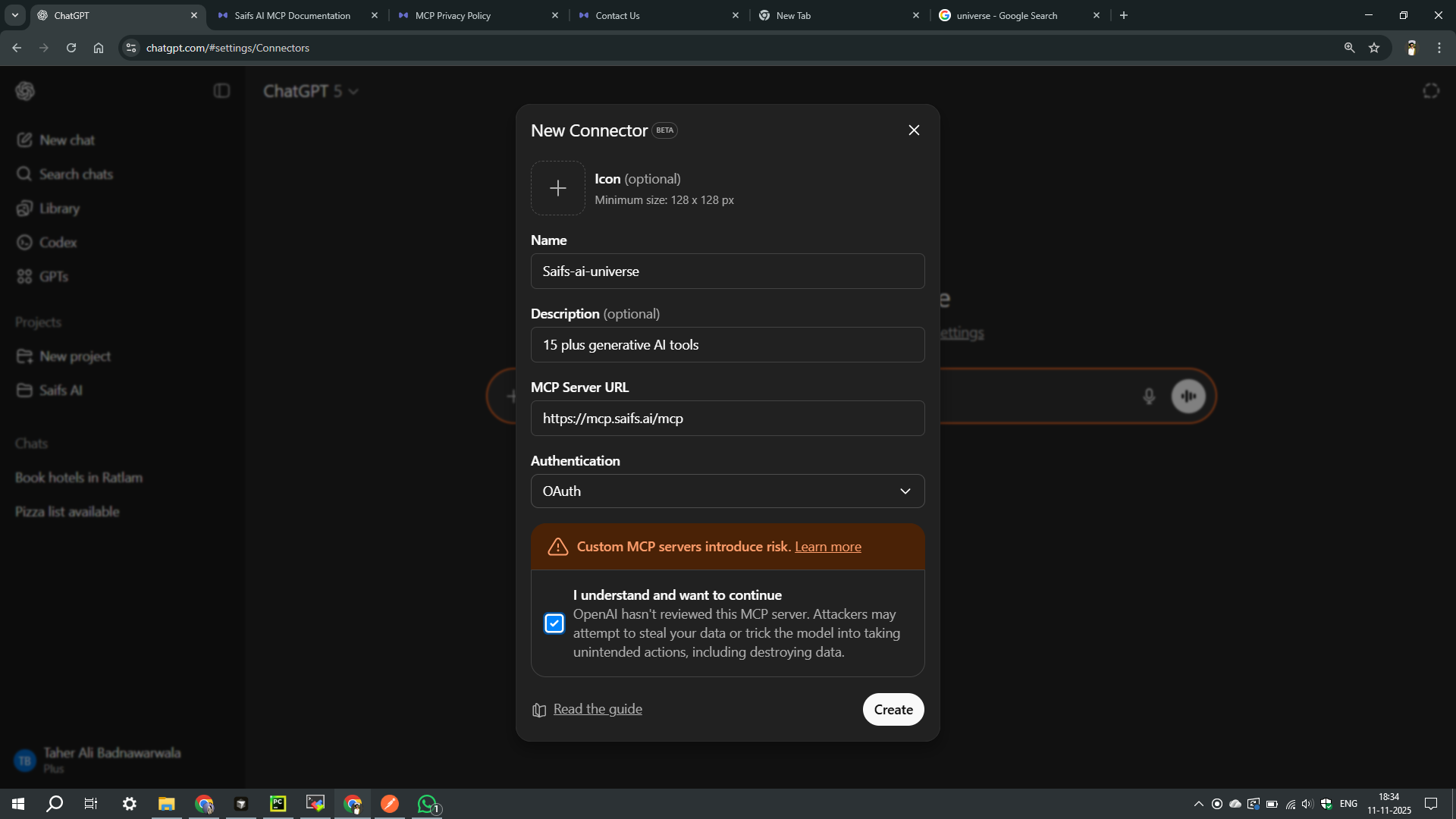
Add the Lead Scorer MCP
Enter this server — not the generic Saifs AI MCP. This one is Lead Scorer only. Then click Save.
Server URL: https://lead-intelligence-mcp.saifs.ai/mcp
Name: Lead Scorer
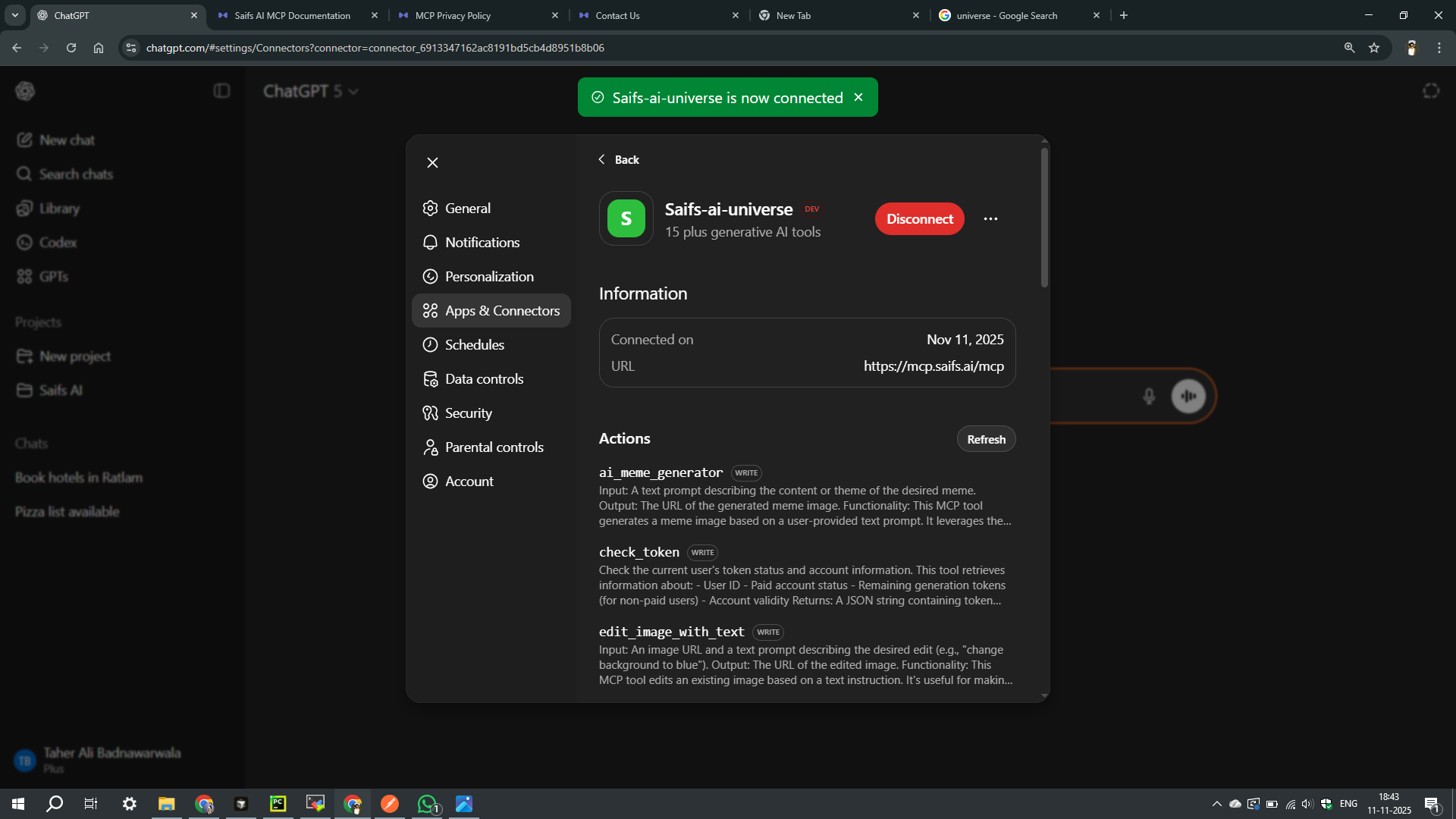
Save and start asking
Click Save. You can now ask who converts, what's at risk, and who to CALL, NURTURE, or VERIFY in ChatGPT.
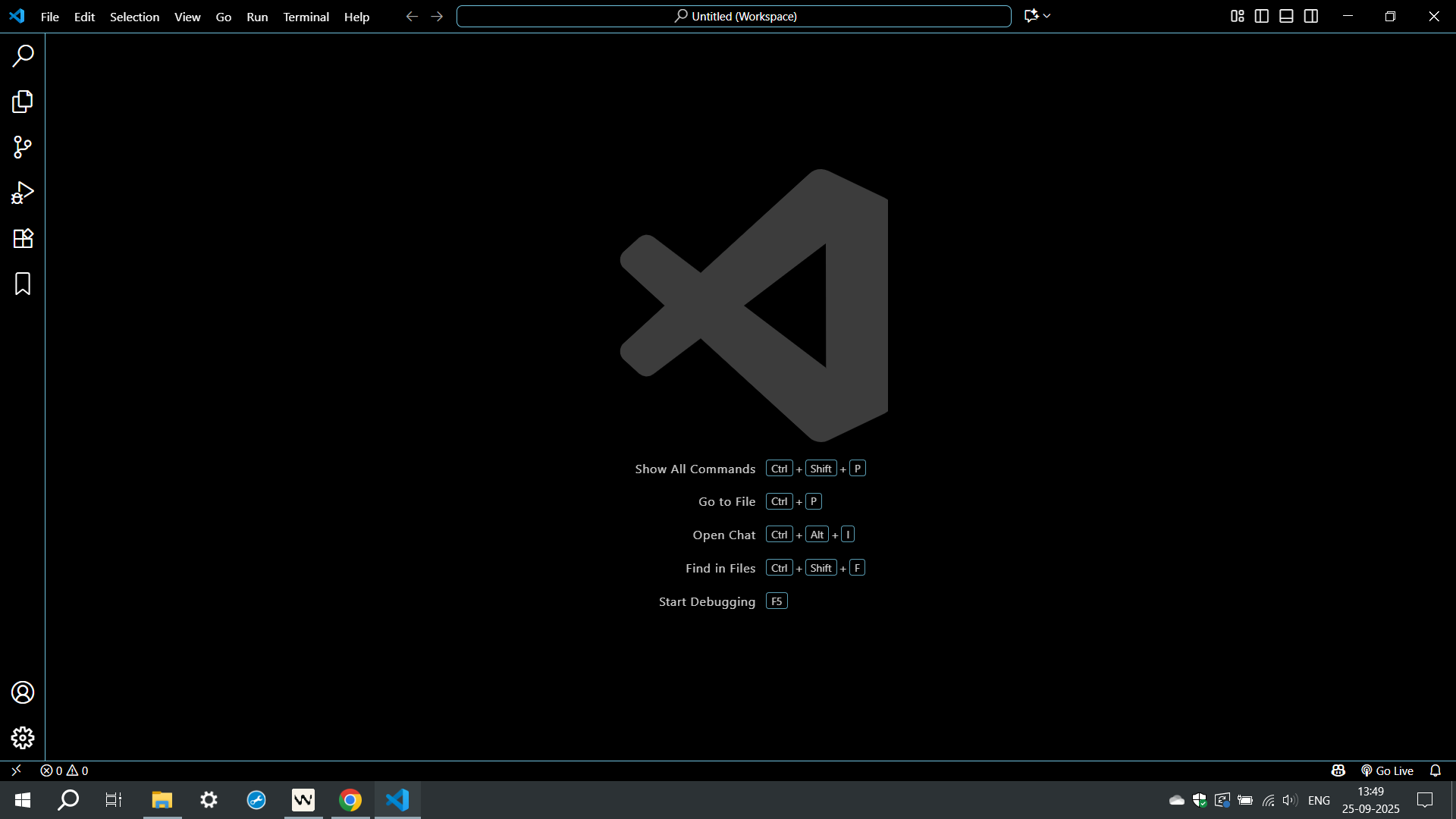
Install an MCP-compatible client
Open the VS Code marketplace and install an MCP-compatible client.
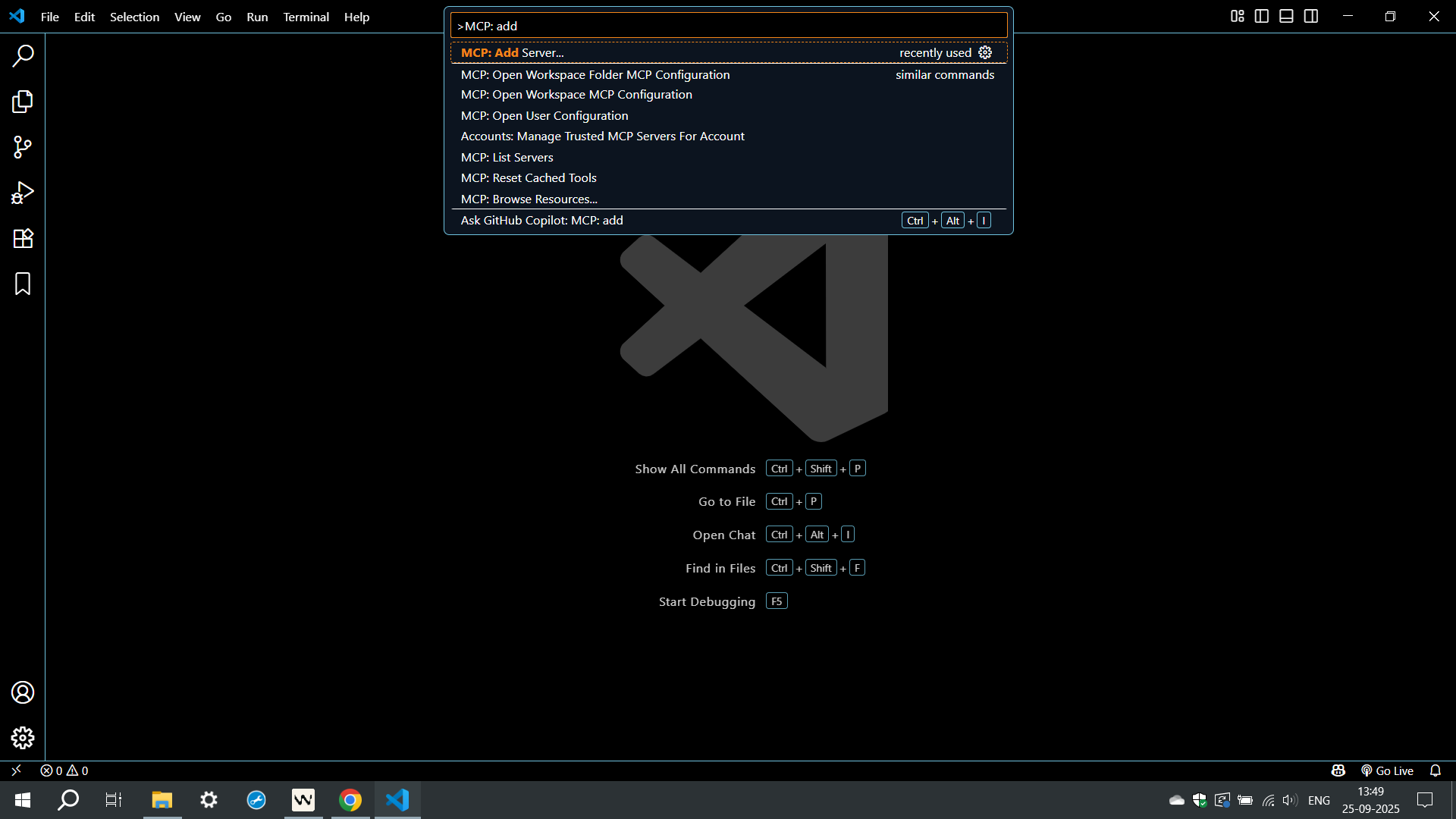
Open the command palette
Open the command palette, type MCP: add, and select MCP: Add Server to start the wizard.
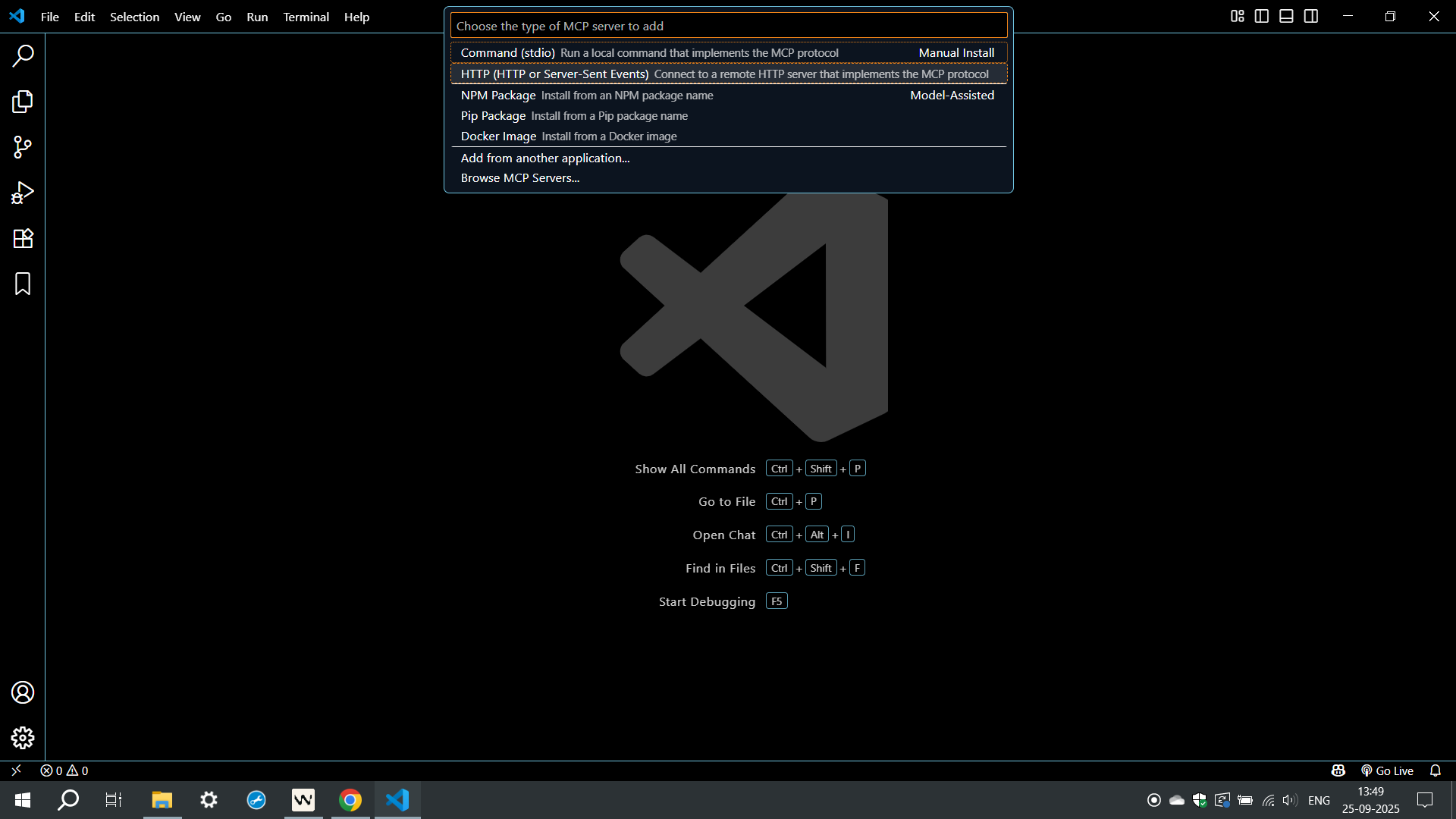
Choose HTTP server
Search MCP: Add Server and choose HTTP (HTTP or Server-Sent Events) to connect to a remote MCP server.
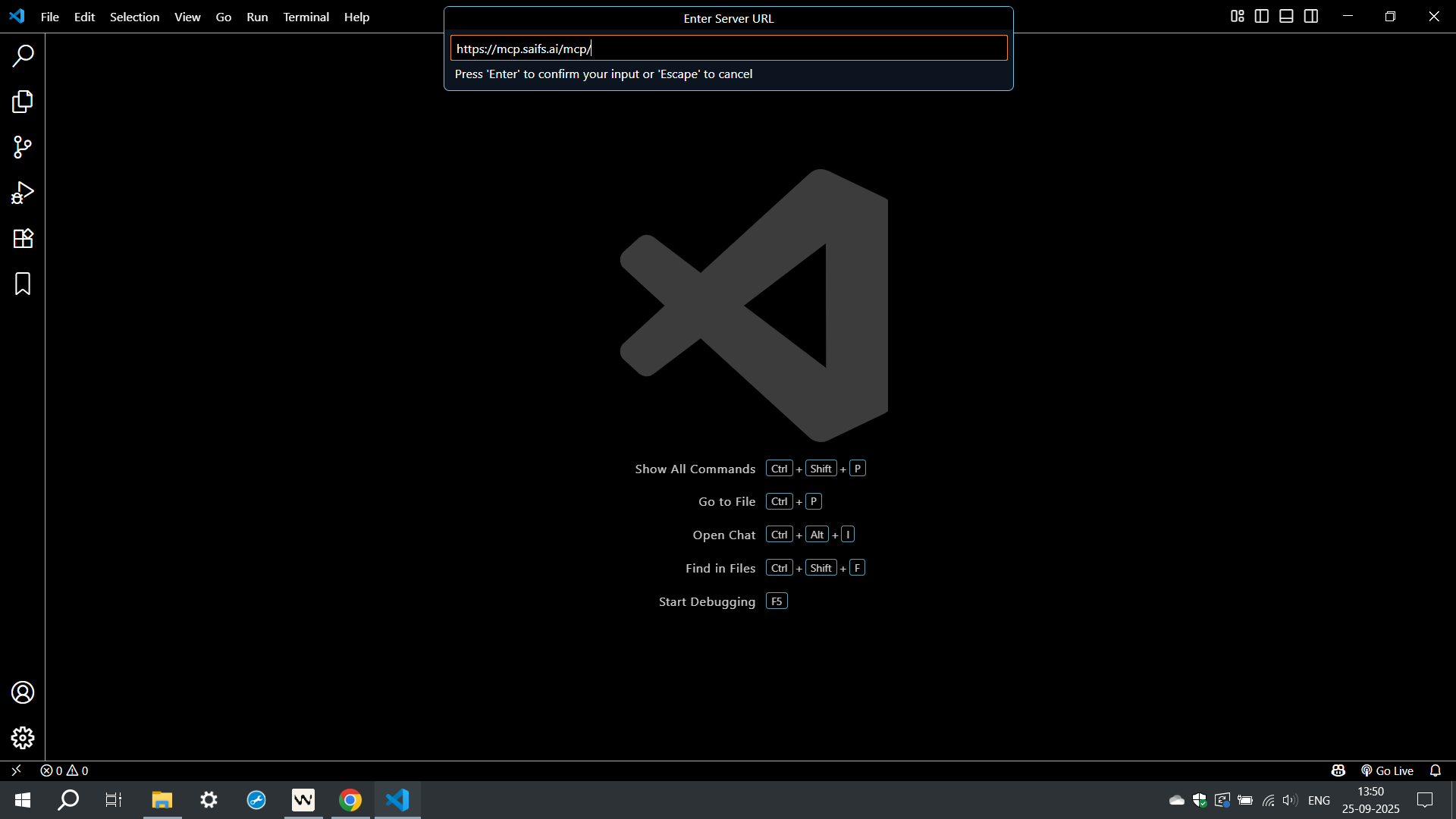
Enter the Lead Scorer MCP URL
Input this server URL — not the generic Saifs AI MCP. This one is Lead Scorer only. Press Enter to confirm.
https://lead-intelligence-mcp.saifs.ai/mcp
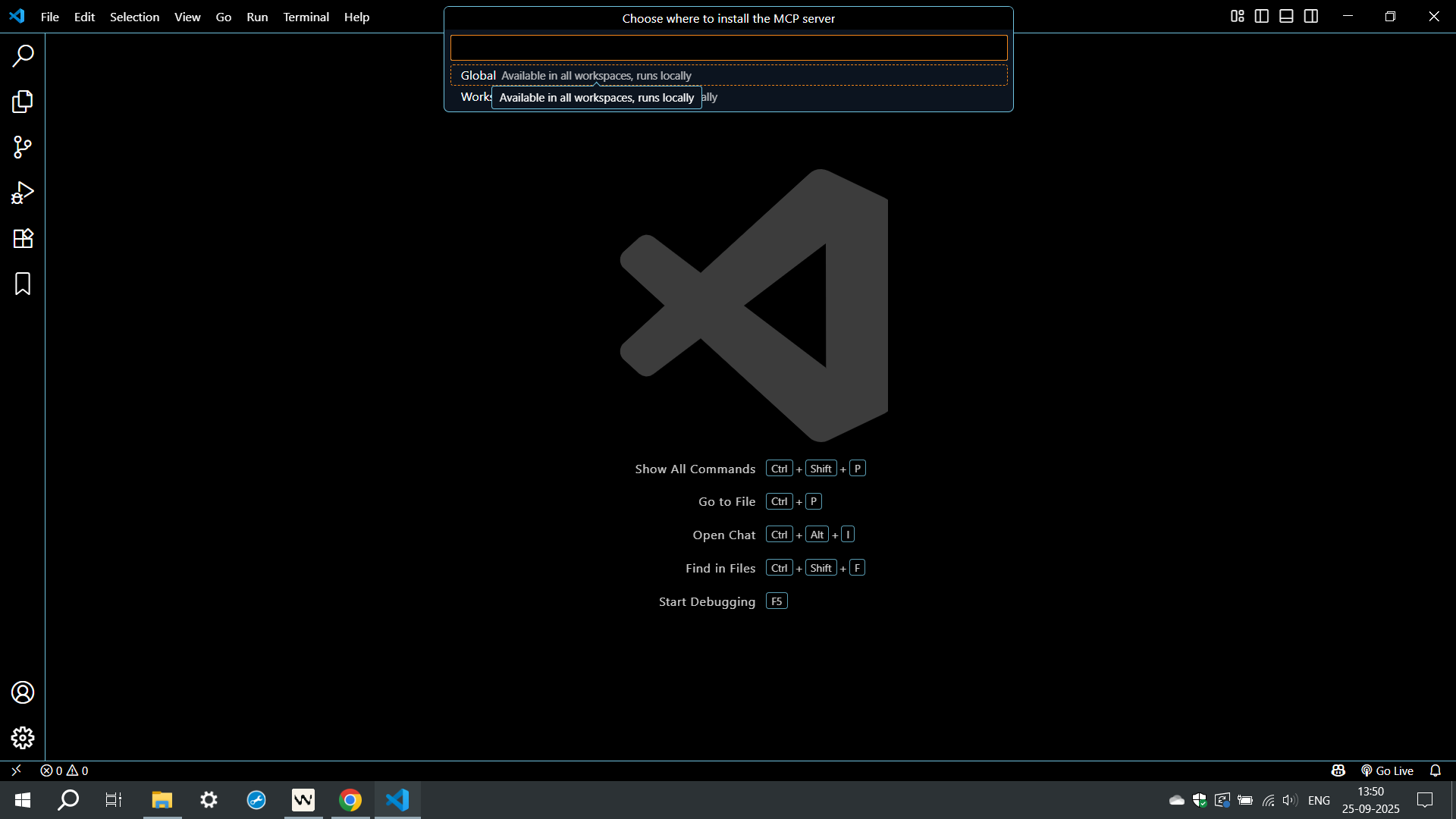
Choose installation scope
When prompted, choose Global (all workspaces) or Workspace (this workspace only).
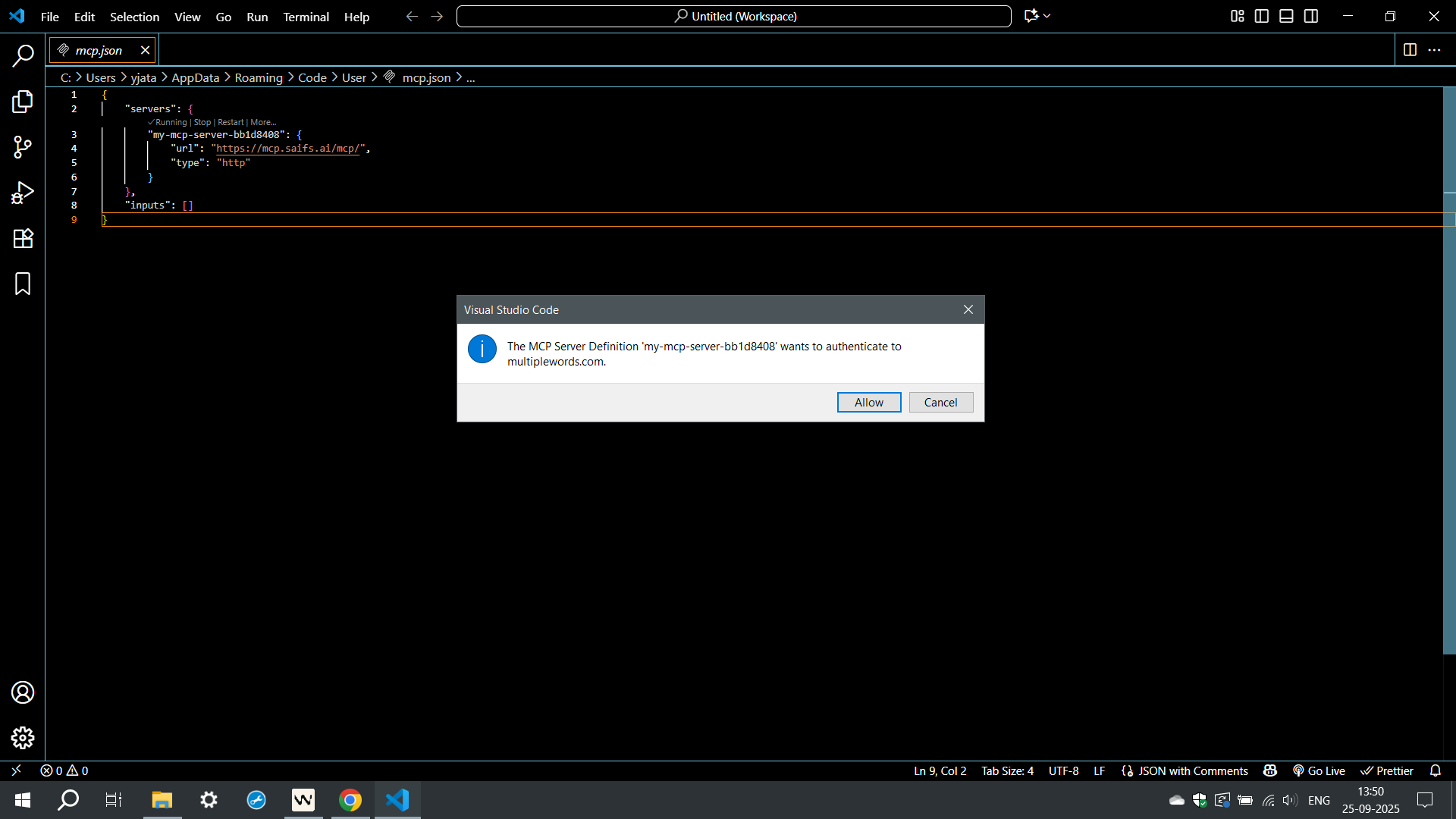
Allow authentication
Allow the server to authenticate so VS Code can talk to the Lead Scorer MCP.
Verify the server is running
The MCP server should show as Running. That confirms the Lead Scorer Agent is connected in VS Code.
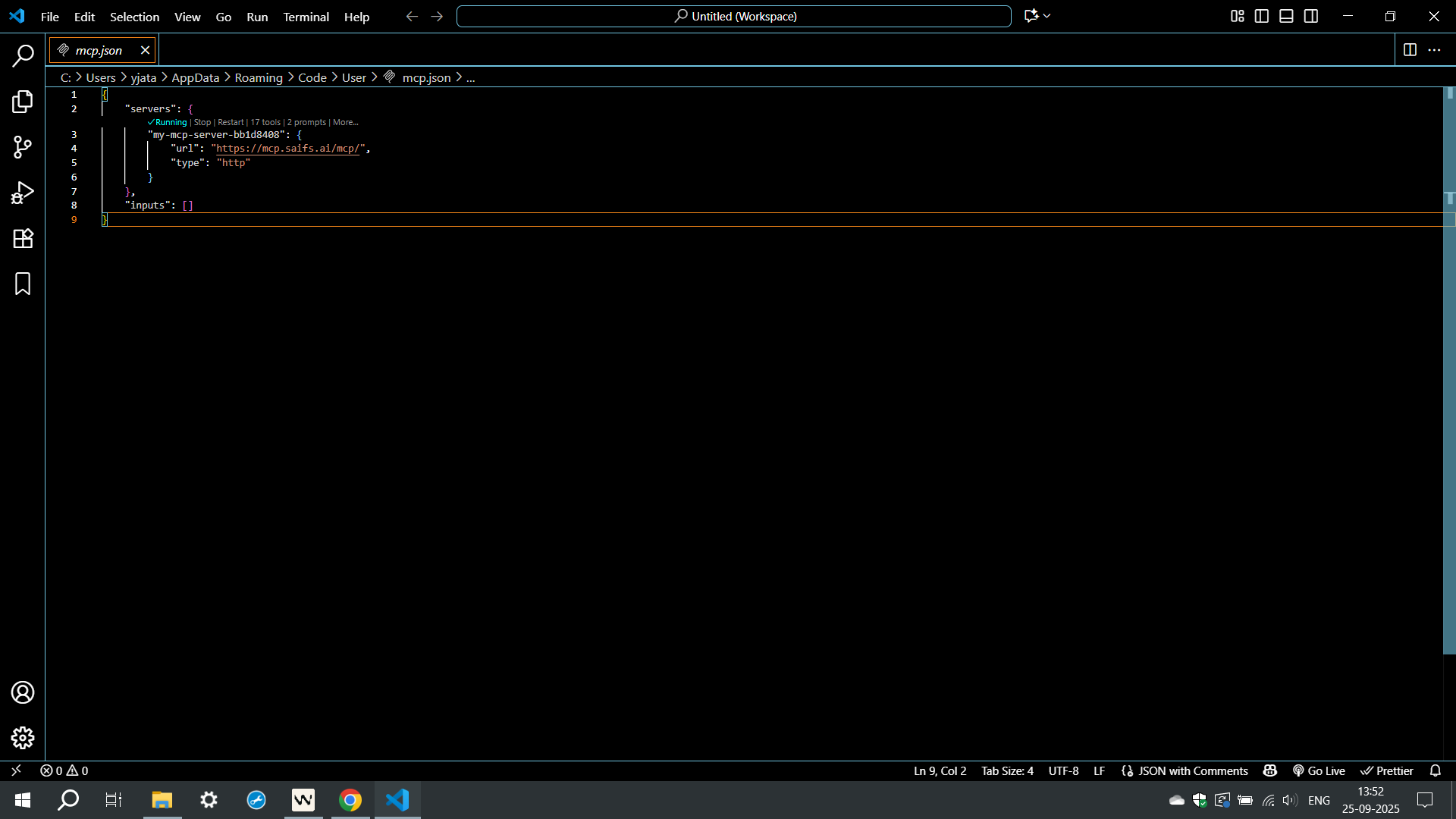
Open Windsurf
Launch Windsurf, then open an existing project folder or create a new one from the welcome screen.
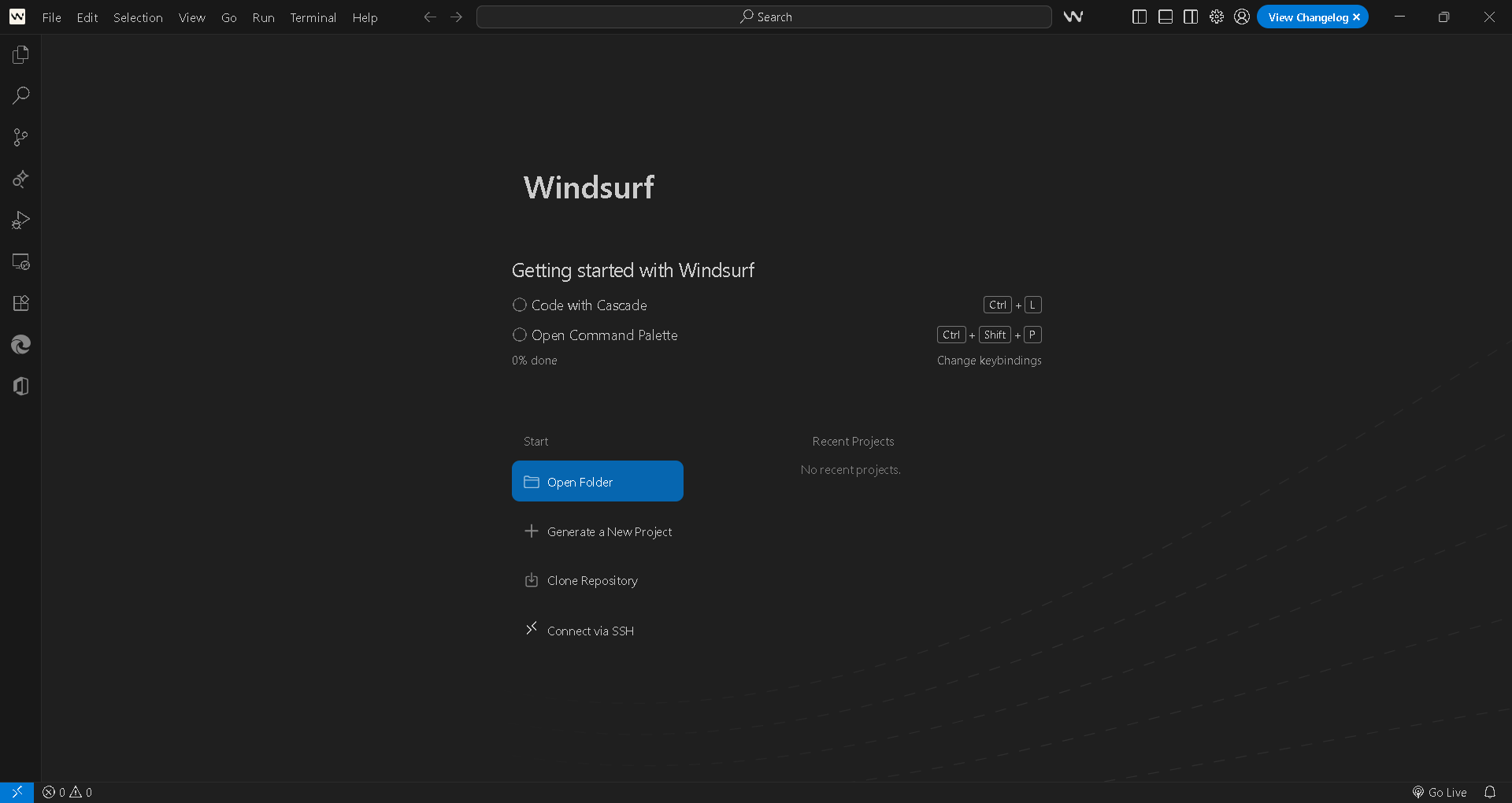
Configure the MCP server
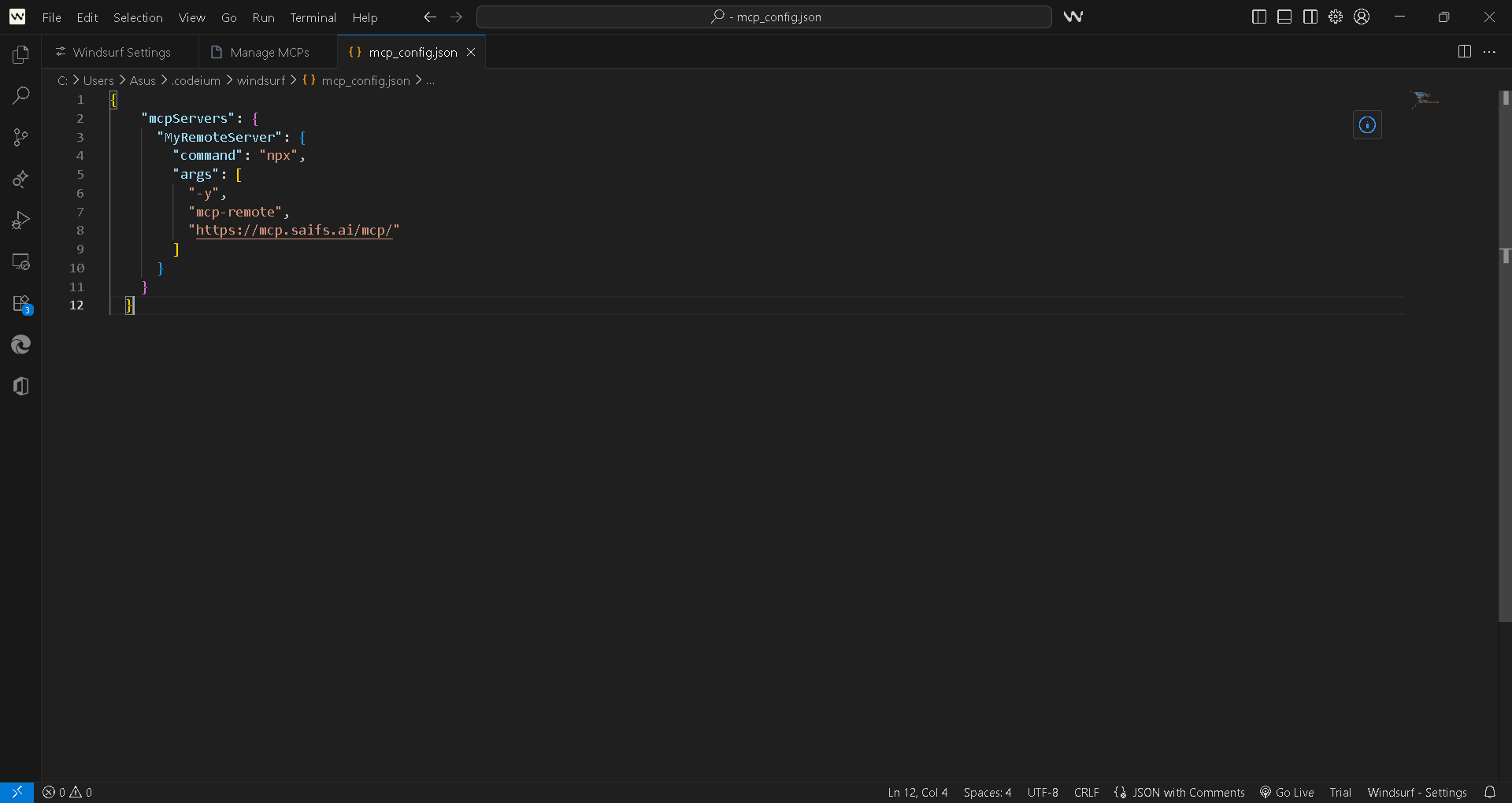
Open or create mcp_config.json in your project or settings directory and add the server.
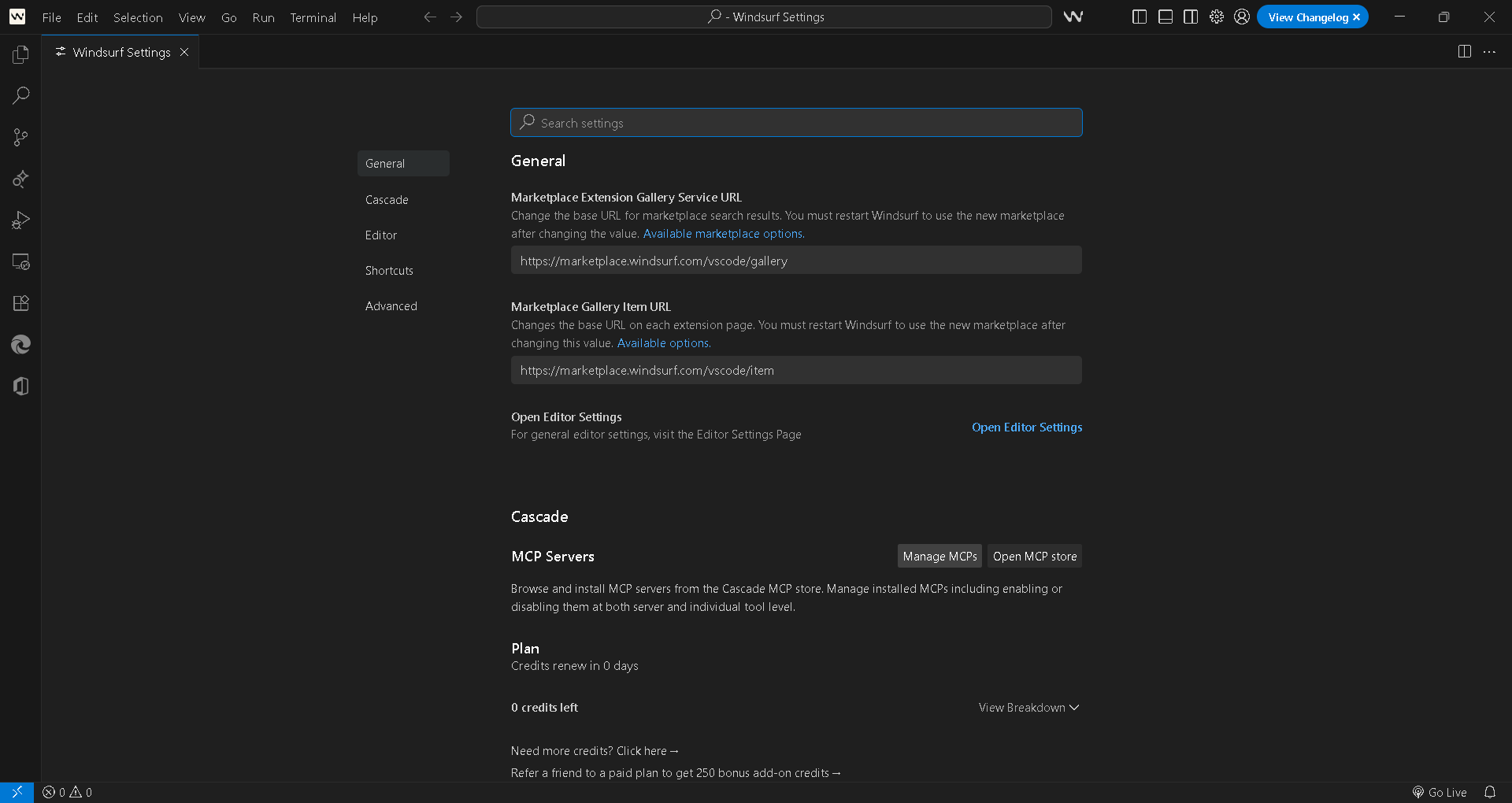
Access MCP server settings
Open Windsurf settings and go to Cascade or MCP Servers. Click Manage MCPs or Open MCP store.
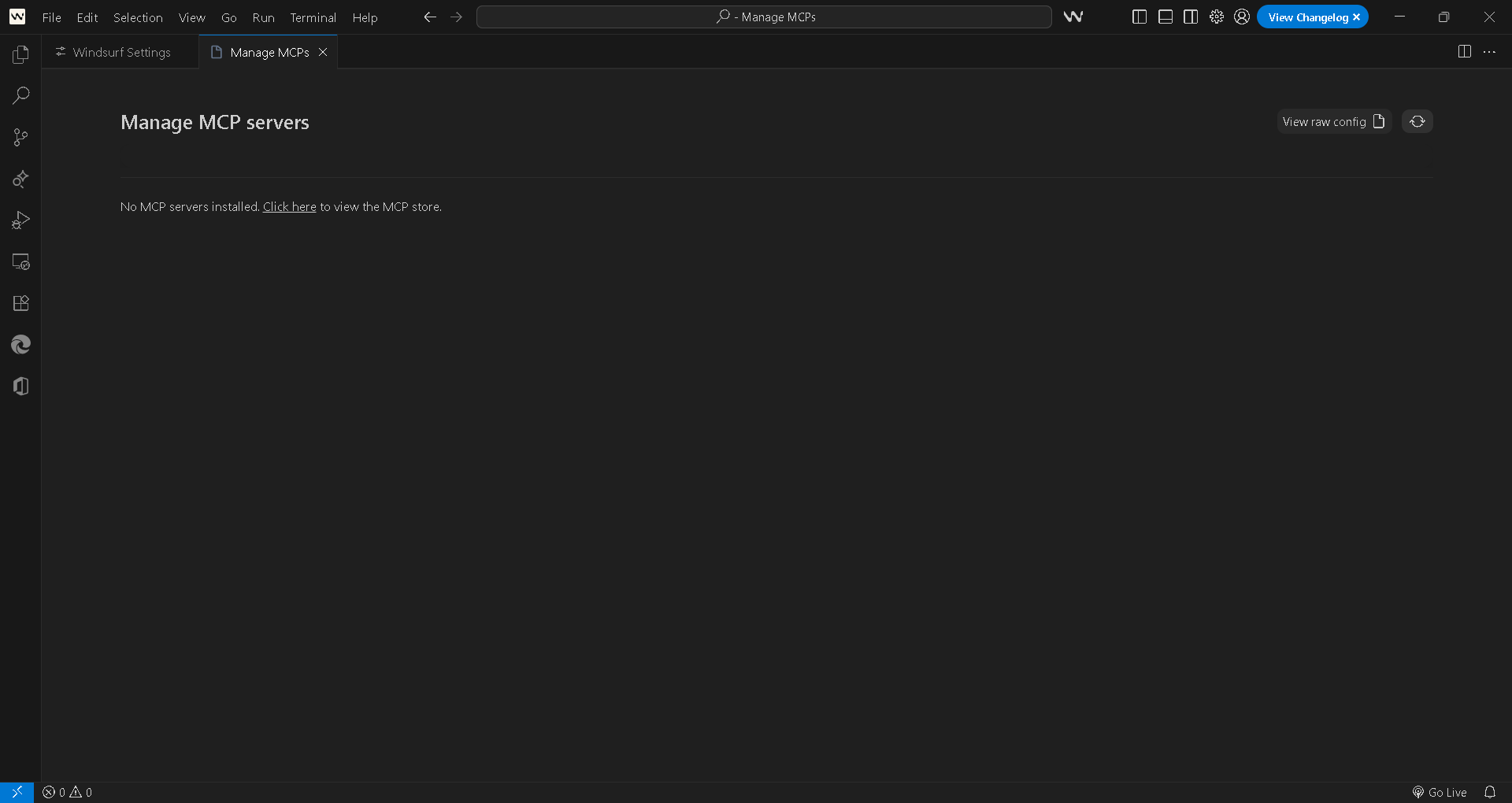
Add the Lead Scorer MCP
Use Manage MCP servers or View raw config. Add this block — not the generic Saifs AI MCP. This one is Lead Scorer only.
{
  "mcpServers": {
    "lead-scorer": {
      "command": "npx",
      "args": [
        "-y",
        "mcp-remote",
        "https://lead-intelligence-mcp.saifs.ai/mcp"
      ]
    }
  }
}
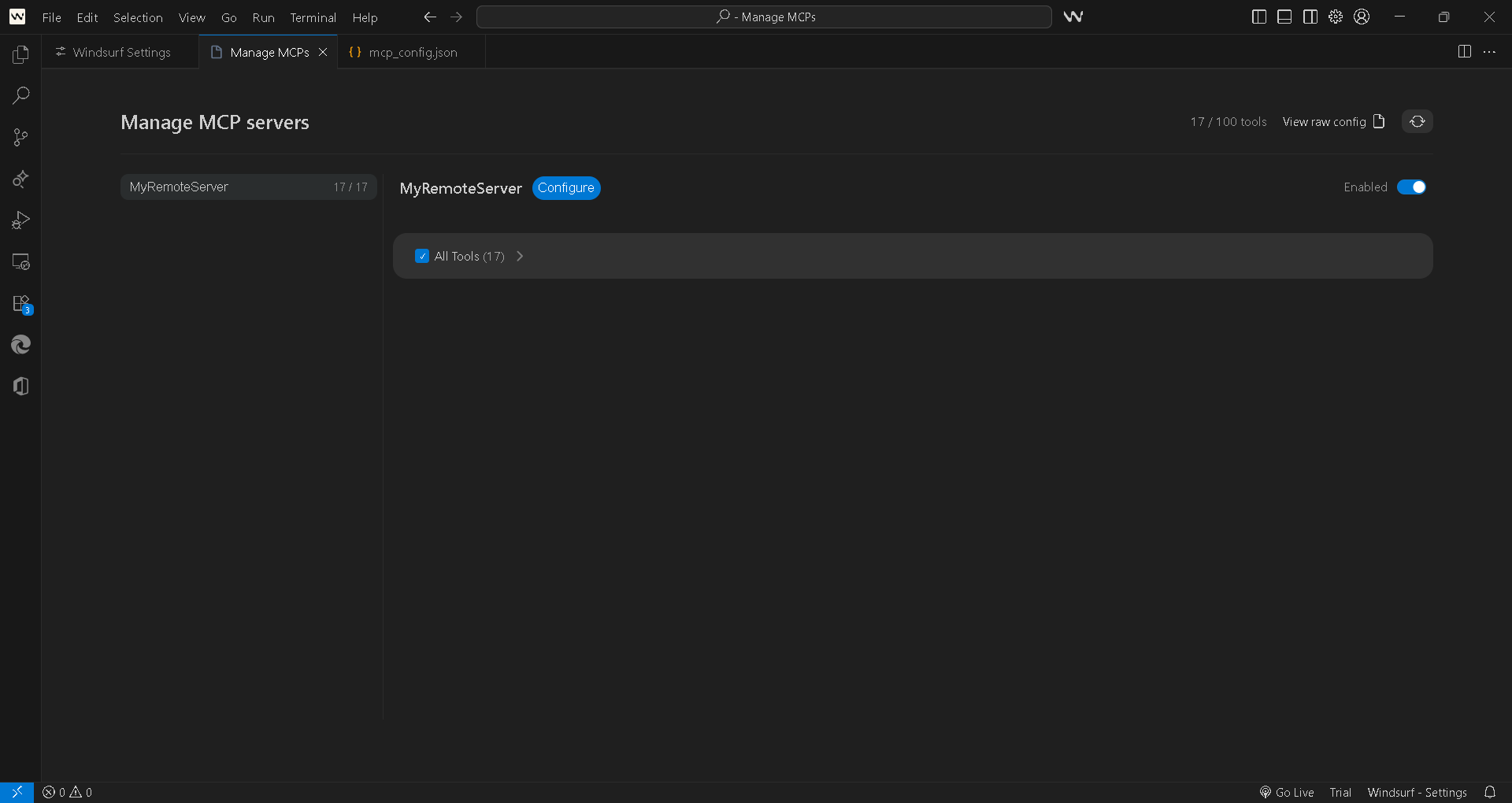
Verify the agent is on
The toggle next to the server should be ON. That confirms the Lead Scorer Agent is connected in Windsurf.
What Our AI Agent Can Actually Do
Once connected, our AI Agent isn't answering from a static file — it's querying live, calculated intelligence every time. Here's what that looks like in practice.
Say you send this week's open pipeline. Every lead row needs lead_id and created_date. Stage, status, closed_date, deal_size, and source help if you have them. Optional touches improve engagement, uplift learning, and attribution. Optional stage_history improves the Markov funnel and stage-transition analysis. For 500 lead rows or fewer, lead_pipeline scores the rows directly and returns the per-lead ledger. For pipelines larger than 500, use lead_pipeline_get_engine — save and run the returned script verbatim; the rows never pass through as tokens.
- Each open lead gets a conversion probability. Not a 0–100 CRM score, but fitted P(convert) — and expected days-to-convert on the horizon you set. Open leads stay censored. They are not treated as losses.
- Expected pipeline value is time-discounted. The agent returns expected pipeline value at an explicit annual discount rate — not a hopeful sum of deal sizes — plus a pipeline exposure headline for the open book.
- Value at Risk and Value of Contact sit on those probabilities. Value at Risk is what is at risk if you don't act. Value of Contact is what a contact is worth if you do. When learned uplift is too thin, the system uses a stated contact-effectiveness assumption instead of inventing lift.
- Funnel stage outlook and multi-touch Shapley attribution come back with the score. Stage history sharpens the Markov funnel. A touches log lets exact Shapley split credit across channels — not a last-touch guess. If closed outcomes are too few, Shapley refuses to fit. That refusal is the result.
- You get a daily CALL / NURTURE / VERIFY queue. Use those three action labels as returned. Separate manager decisions cards say CALL TODAY / PUSH FORWARD / QUALIFY — money, days, and lead names only, no Cox or Shapley jargon. You ask: "Who should I call today, and what's at risk if I don't?"
- Prediction confidence is a guardrail, not a slogan. Cox and Shapley refuse to fit when closed outcomes are too few. Alerts and the data-quality report come with the result. Thin data is not treated as certain. Do not invent scores — score the rows you have.
That's the shift: from a 0–100 lead score you have to interpret, to conversion probabilities, money at risk, value of contact, and a ranked queue — CALL, NURTURE, or VERIFY — on the pipeline you already export.
"Here's our open pipeline CSV — who converts, what's at risk, and who should I CALL today?"
"We have 80 open leads. Score them with lead_pipeline — don't invent scores."
"We have 2,000 leads. Use lead_pipeline_get_engine, save the script verbatim, and tell me the CALL / NURTURE / VERIFY queue."
Why Connect Our MCP
Deterministic Data
Same input, same output, every time. The numbers you get are calculated by proven statistical models, not generated as a plausible-sounding guess.
Privacy
Full SOC 2 compliance. Your open pipeline never leaves your premises as a training set. For books larger than 500 leads, scoring can run locally — the rows never pass through as tokens.
Less Token Usage
Purpose-built models do the heavy lifting instead of an LLM re-processing your entire pipeline on every query. Above 500 rows, lead_pipeline_get_engine keeps thousands of leads out of the token path.
Battle-Tested
Built on documented statistical science — Kaplan–Meier and Cox with censoring, Markov funnel stages, and exact Shapley — not a new lead-score formula hoping it works on your book.
Connect MCP for Creating a Lead Scorer Agent
You've seen how it works — deterministic, private, battle-tested, and ready to run on the platform you already use. Connecting takes minutes. After that, every CRM export becomes conversion probabilities, money at risk, and a daily CALL / NURTURE / VERIFY queue.
Connect Our MCP →No credit card. No data science team. Just your CSV and a few minutes.